Gruvbox is one of the most popular retro style color schemes used by developers, designers, and terminal users around the world. It is known for its warm, soft colors, low eye strain design, and vintage inspired look that makes coding more comfortable for long hours.This guide will explain Gruvbox in a simple way, including what it is, how to install it, how to use its themes, and how to adjust settings for a better experience.
Introduction to Gruvbox
Gruvbox is a carefully designed color palette created for code editors, terminals, and development tools. It uses warm brown, orange, yellow, and soft contrast colors instead of harsh bright whites or pure blacks.Many developers prefer Gruvbox because it helps reduce eye strain during long coding sessions. It also gives a consistent visual style across different tools like editors, terminals, and plugins.
Another reason for its popularity is its retro aesthetic. It feels inspired by old computer screens, which gives it a unique and comfortable look.
Key Features of Gruvbox
Gruvbox is more than just a color theme. It is designed with user comfort and readability in mind.One of its main features is balanced contrast. The colors are not too bright and not too dull, which makes text easy to read.t also includes both light and dark modes. This allows users to choose the version that matches their working environment or personal preference.other strong feature is syntax highlighting. Different code elements like variables, functions, and keywords are shown in different colors so that code becomes easier to understand.Gruvbox also supports many applications, including popular editors like VS Code, Vim, and terminals like Linux shells and macOS terminal apps.
How to Install Gruvbox
Installing Gruvbox depends on which tool you are using. The process is simple and usually takes only a few minutes.
Installing in VS Code
To install Gruvbox in Visual Studio Code, open the Extensions marketplace and search for Gruvbox. Once you find it, click install. After installation, go to color theme settings and select Gruvbox as your active theme.You can switch between dark and light versions from the theme selection menu.
Installing in Vim or Neovim
For Vim users, Gruvbox can be installed using a plugin manager like Vim Plug or Pathogen. After adding the Gruvbox repository, you need to enable the colorscheme in your configuration file.Once set up, restart Vim and activate the theme using the colorscheme command.
Installing in Terminal
Many terminal applications allow custom color schemes. You can download Gruvbox terminal color files and import them into your terminal settings.After importing, set Gruvbox as the default profile or theme.
Understanding Gruvbox Themes
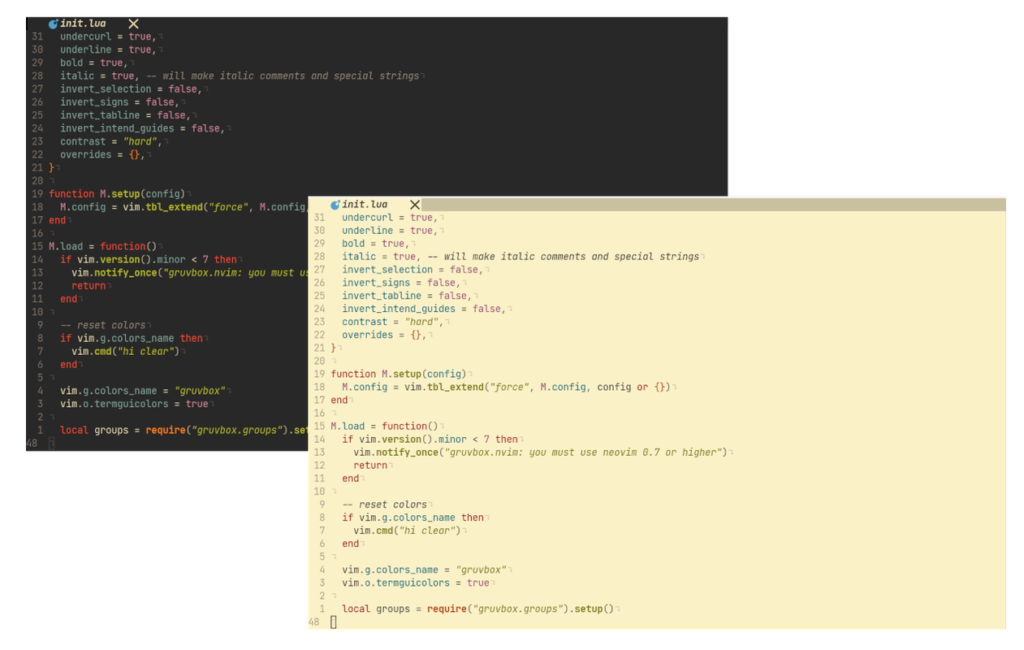
Gruvbox comes with different theme options that help users customize their experience.The most common versions are dark mode and light mode.Dark mode is the most popular because it is easier on the eyes, especially in low light environments. It uses darker backgrounds with warm colored text highlights.ight mode is useful during daytime work or in bright environments. It keeps a soft light background while still using warm tones for syntax highlighting.Both versions maintain the same design philosophy, so switching between them does not feel confusing.
Customizing Gruvbox Settings
One of the best things about Gruvbox is its flexibility. Users can adjust settings to match their comfort level.You can change contrast levels to make the theme darker or softer depending on your preference. Some users prefer higher contrast for better readability, while others prefer softer tones for a relaxed look.You can also modify font styles in your editor to match Gruvbox better. Many developers choose monospace fonts that complement the retro style.Another important setting is cursor visibility. Gruvbox allows you to adjust cursor color so that it stands out clearly against the background.In advanced setups, you can even change individual syntax colors if you want a more personalized experience.
Why Developers Prefer Gruvbox
Gruvbox is widely used because it improves both comfort and productivity. Developers often spend long hours reading and writing code, so eye-friendly design becomes very important.The warm colors reduce stress on the eyes compared to bright white backgrounds. This makes it easier to focus for longer periods without fatigue.Another reason is consistency. Gruvbox looks the same across many tools, so users do not need to adjust visually when switching between applications.It also provides a nostalgic feel that many users enjoy, making coding more pleasant.
Tips for Best Experience with Gruvbox
If you are new to Gruvbox, it is a good idea to start with the dark mode because it is the most widely used version.Try using it in multiple tools such as your code editor and terminal for a consistent workflow.Adjust contrast settings slowly instead of changing everything at once. This helps you find the most comfortable setup.Also, pair Gruvbox with a readable font to improve clarity and reduce strain.
Common Issues and Fixes
Sometimes users may face small issues while using Gruvbox.If the theme does not appear after installation, restarting the editor usually fixes the problem.If colors look incorrect, check whether the theme is properly activated in settings.In terminal applications, make sure the correct profile is selected after importing the color scheme.Most issues are simple and can be solved with basic configuration steps.
Final Thoughts
Gruvbox is more than just a color theme. It is a carefully designed visual system that improves codingcomfort, reduces eye strain, and creates a pleasant working environment.Whether you are a beginner or an experienced developer, Gruvbox can make your workflow smoother and more enjoyable. Its easy installation, flexible settings, and beautiful retro style make it one of the best themes available today.If you want a simple but powerful way to improve your coding experience, Gruvbox is definitely worth trying.