- Gruvbox Dark Medium, most loved variant
Download Gruvbox: Start Your Better Coding Setup in Minutes
Download the Gruvbox with complete step-by-step installation guides for VS Code, Vim, Neovim, and Linux. Set up a clean, consistent, and comfortable coding environment in just a few minutes.
Why download
A theme built for long sessions
Choosing the right theme has a real impact on your daily workflow. A well-designed theme doesn’t just look good it makes code easier to read, easier to navigate, and far easier on your eyes hour after hour.
Reduce eye strain
Carefully tuned contrast keeps things readable through long coding sessions.
Improved readability
A palette designed around syntax, keywords, strings and comments each get their place.
Distraction-free
No neon. No noise. Just a calm surface that lets the code take center stage
Consistent everywhere
The same visual language across editors, terminals and desktop environments.
Professional feel
Used by thousands of developers worldwide, refined over years of real use.
Editor + terminal
First-class support from VS Code and JetBrains to Vim, Neovim and tmux.
Download Information
What's in the package
Everything you need to install, configure and start using Gruvbox across your favorite development tools in one place.
| Theme name | Gruvbox |
| Type | Syntax highlighting theme |
| License | Open source |
| Platforms | Windows, Linux, macOS |
| Editors | VS Code, Vim, Neovim, JetBrains |
| Difficulty | Beginner friendly |
| Variants | Dark • Light • Hard • Medium • Soft |
What's included
- Dark and Light theme variants
- Multiple contrast options (Hard, Medium, Soft)
- Syntax highlighting profiles
- Terminal color configurations
- Editor integrations
- Configuration examples
- Community customization resources
variants
Pick the contrast that fits your eyes
Five variants, one consistent identity. Most developers settle on Dark Medium, the balance between clarity and comfort that made Gruvbox famous.
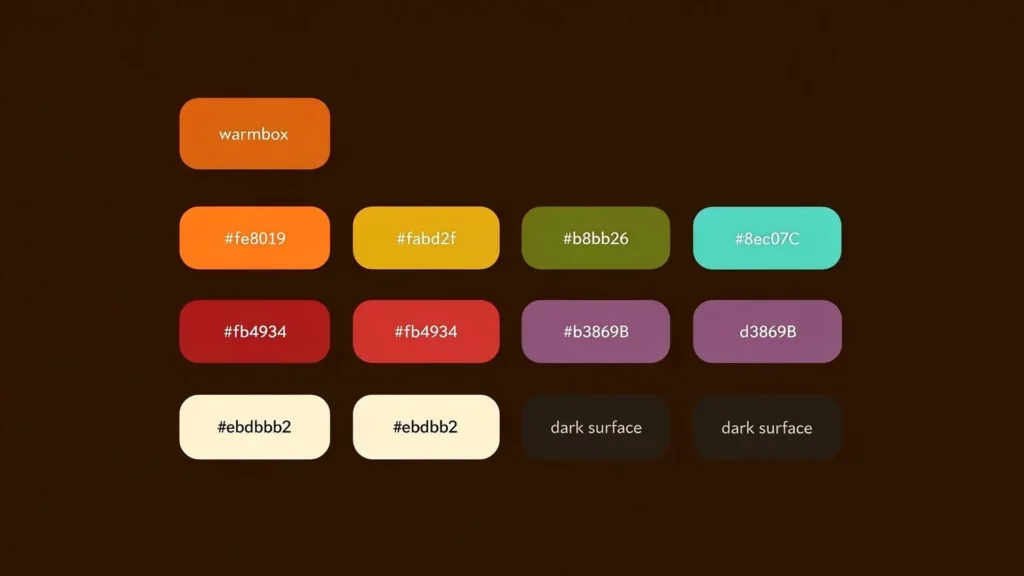
Preview, the Gruvbox palette that powers every variant.
Installation
Install Gruvbox in minutes
Pick your editor and follow the steps. Each guide is short, Gruvbox is intentionally designed to be quick to install and immediately usable.
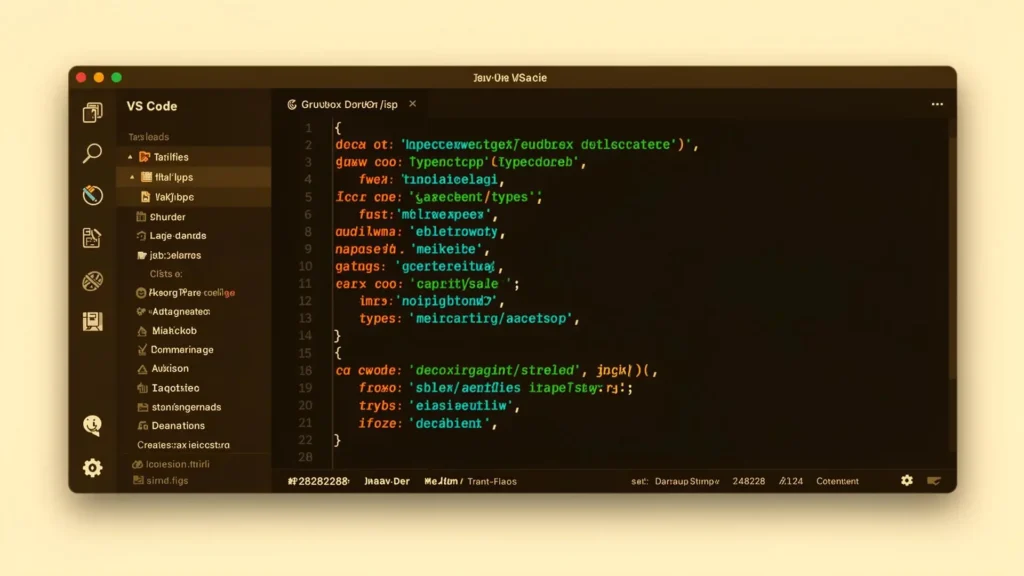
Preview, Gruvbox Dark Medium running in Visual Studio Code.
Platforms
Works on every modern setup
Gruvbox is loved by Linux users for its versatility, but it runs equally well on Windows and macOS. No special hardware needed, just install and go.
- Windows 10
- Windows 11
- macOS
- Ubuntu
- Debian
- Fedora
- Arch Linux
- Linux Mint
- GNOME
- KDE Plasma
- XFCE
- Cinnamon
Troubleshooting
Hit a snag? Try this first
Most installation issues resolve in a few minutes. Here are the three things to check when something looks off.
Theme doesn't appear
- Restart the editor
- Reload extensions
- Confirm Gruvbox is the active theme
Colors look incorrect
- Verify terminal color support (truecolor)
- Update your editor or terminal
- Reinstall the theme
Changes don't apply
- Save configuration files correctly
- Restart the application
- Refresh editor settings
FAQ's
Common Questions
Is Gruvbox free to use?
Yes. Gruvbox is completely free and open source.
Does Gruvbox work with VS Code?
Yes. Gruvbox is fully compatible with Visual Studio Code and can be installed from the Extensions Marketplace.
Can I use Gruvbox with Vim and Neovim?
Yes. Gruvbox was originally created for Vim users and works perfectly with Vim and Neovim.
Does Gruvbox support Linux?
Yes. Gruvbox works very well across Linux desktop environments and terminal applications.
Which Gruvbox version is most popular?
Gruvbox Dark with Medium Contrast is the most commonly used version.
Is Gruvbox suitable for beginners?
Yes. It is easy to install, simple to configure, and beginner friendly.
Can Gruvbox improve coding productivity?
Gruvbox helps create a cleaner and more focused coding environment, which can improve readability and reduce distractions during development.
Is Gruvbox available for both dark and light themes?
Yes. Gruvbox offers both Dark and Light variants, allowing users to choose the style that best fits their workflow.
Which editors support Gruvbox?
Gruvbox is supported by many popular editors, including VS Code, Vim, Neovim, JetBrains IDEs, and various terminal applications.
Can I customize Gruvbox colors and contrast settings?
Yes. Gruvbox provides multiple contrast options and can be customized further depending on the editor or platform being used.
Is Gruvbox suitable for professional development work?
Absolutely. Gruvbox is widely used by professional developers, DevOps engineers, system administrators, and open-source contributors.
Does Gruvbox work on Windows, Linux, and macOS?
Yes. Gruvbox is compatible with all major operating systems, including Windows, Linux, and macOS.
Is Gruvbox good for long coding sessions?
Yes. Its warm color palette and balanced contrast are specifically designed to reduce visual fatigue during extended periods of coding.
Where can I download and install Gruvbox?
You can download Gruvbox and find installation instructions directly from our Download Page, which includes setup guides for various editors and platforms.