If you spend hours a day staring at code, a text editor, or a terminal window, you already know that color matters more than most people realize. The wrong theme leaves your eyes tired by lunchtime. The right one makes long sessions feel effortless. That’s exactly why Gruvbox has become one of the most loved color schemes among developers, writers, and terminal enthusiasts around the world.
In this guide, we’ll break down what Gruvbox actually is, why it looks the way it does, how to install it on your favorite tools, and whether it’s the right fit for you. No fluff, no jargon overload, just a clear, practical walkthrough.
What Is Gruvbox?
Gruvbox is a retro groove color scheme originally created for Vim by developer Pavel Pertsev (GitHub handle morhetz). It was designed with one goal in mind: keep colors easy to tell apart, comfortable in contrast, and genuinely pleasant to look at for hours on end.
The name itself is a nod to its aesthetic, a “groovy,” retro-inspired palette built around warm, earthy tones rather than the cold blues and grays you’ll find in many modern themes. Think warm yellows, burnt oranges, muted greens, and soft browns, all set against a dark (or light) neutral background.
Gruvbox <cite index=”3-1″>draws heavy inspiration from other well-known schemes like badwolf, jellybeans, and solarized</cite>, blending the best ideas from each into something that feels both nostalgic and highly functional.
Why Developers and Writers Love Gruvbox
Ask any longtime Gruvbox user why they stick with it, and you’ll usually hear some version of the same answer: “it’s just easy on the eyes.” That’s not an accident, it’s the entire design philosophy behind the scheme.
Here’s what makes it stand out:
- Low eye strain during long sessions. The muted, warm palette avoids the harsh brightness of pure black-and-white themes, which is a big deal if you’re coding, writing, or reading for hours at a stretch.
- Excellent contrast without being harsh. Colors are distinguishable enough that syntax highlighting actually helps you scan code faster, instead of blending together.
- A nostalgic, “retro groove” feel. The warm tones give your workspace a cozy, vintage character instead of the sterile look of default editor themes.
- Massive ecosystem support. Because it’s been around for years and has a large community, Gruvbox has been ported to nearly every editor, terminal, and application you can think of.
The Gruvbox Color Palette Explained
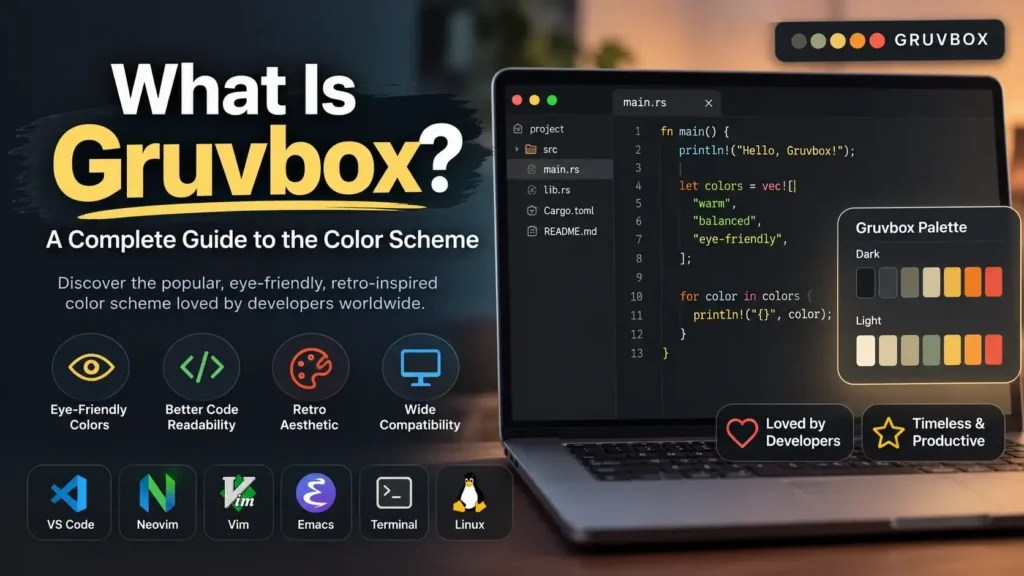
At its core, Gruvbox is built around a 16-color palette split between a dark and a light background option.
Dark mode typically uses:
- Background: a deep neutral like
#282828 - Foreground/text: a warm off-white such as
#ebdbb2 - Accent colors: reds, greens, yellows, blues, purples, and aquas, all slightly desaturated so they don’t compete with each other
Light mode flips the same warm palette onto a soft, cream-colored background instead of stark white, keeping that same retro character while suiting people who prefer working in daylight-friendly environments.
There are also contrast variants, hard, medium, and soft, so you can dial the intensity up or down depending on your monitor, lighting conditions, or personal preference. If you work in a bright room, a hard-contrast variant might suit you better; if you’re in a dim setting late at night, the soft variant is gentler on the eyes.
Popular Gruvbox Variants Worth Knowing
Gruvbox isn’t just one single theme anymore, it’s grown into a whole family of adaptations:
- Gruvbox Material: a softer-contrast take on the original, designed specifically to reduce eye fatigue even further while keeping the same warm identity.
- gruvbox.nvim: a modern Lua-based port built for Neovim users, offering deep customization like palette overrides, treesitter support, and semantic highlighting.
- Gruvbox for Typora: brings the same warm, retro aesthetic into Markdown writing and note-taking.
- Gruvbox for terminals: available for Terminal.app, iTerm2, Alacritty, Warp, Ghostty, and other popular terminal emulators.
- Gruvbox for Sublime Text: packaged with dark and light variants plus adjustable contrast levels.
This wide reach is part of why Gruvbox has stayed relevant for so long, no matter what your daily toolchain looks like, there’s almost certainly a version built for it.
Where Can You Use Gruvbox?
One of the biggest reasons Gruvbox keeps growing in popularity is how many places you can actually use it:
- Code editors: Vim, Neovim, Sublime Text, and many others support it natively or via plugin.
- Terminal emulators: iTerm2, Alacritty, Warp, Ghostty, and more.
- Note-taking and writing apps: Typora and similar Markdown editors.
- Custom desktop environments: even niche tools like eDEX-UI have dedicated Gruvbox themes, complete with their own variants for different layouts.
In short, if it’s a tool you use daily for coding or writing, someone in the Gruvbox community has probably already built a version for it.
How to Install Gruvbox (Quick Overview)
While exact steps vary by application, the general process usually looks like this:
- Find the right package for your tool, most are hosted on GitHub or available through a package manager (like Package Control for Sublime Text, or a plugin manager for Neovim).
- Install the theme using your app’s plugin/package system.
- Activate it by updating your settings or configuration file to reference the Gruvbox theme and your preferred variant (dark/light, hard/medium/soft contrast).
- Restart the application so the new color scheme takes full effect.
For example, in Neovim using gruvbox.nvim, you’d typically call the setup function to configure your preferences (contrast level, italics, bold text, and so on) before activating the colorscheme itself. This lets you fine-tune details like whether comments appear in italics or whether the background stays fully transparent.
Gruvbox vs. Other Popular Color Schemes
It’s natural to wonder how Gruvbox stacks up against other well-known themes like Solarized, Dracula, or Nord. Here’s a simple way to think about it:
- Gruvbox vs. Solarized: Both prioritize eye comfort and offer light/dark modes, but Gruvbox leans into warmer, earthier tones, while Solarized favors cooler, more muted blues and teals.
- Gruvbox vs. Dracula: Dracula uses vibrant purples and pinks on a near-black background for a bold, high-energy look. Gruvbox is more subdued and vintage by comparison.
- Gruvbox vs. Nord: Nord goes fully cool-toned with icy blues and grays. Gruvbox is its warm-toned counterpart, appealing to users who want a cozier feel rather than a “frosty” one.
There’s no universally “best” option here, it really comes down to personal taste and how your eyes respond to different tones over long periods.
Is Gruvbox Right for You?
Gruvbox tends to be a great fit if:
- You spend long hours in a terminal or code editor and want something easier on the eyes than a stark black-and-white theme.
- You appreciate a warm, retro aesthetic over cold, clinical color palettes.
- You want a theme with strong community support and wide compatibility across your tools.
- You like having fine control over contrast levels to match your environment and lighting.
If you prefer cooler tones or a more minimalist, high-contrast black-and-white setup, you might lean toward alternatives like Nord or a classic monochrome theme instead, and that’s completely fine. The best color scheme is ultimately the one that keeps you comfortable and productive.
Frequently Asked Questions
What is Gruvbox used for?
Gruvbox is a color scheme used to theme code editors, terminals, and text-editing apps. It’s popular among developers and writers who want a warm, low-contrast look that’s comfortable during long work sessions.
Who created Gruvbox?
Gruvbox was originally created by developer Pavel Pertsev (GitHub username morhetz) as a theme for Vim, and it has since been ported to dozens of other applications by the open-source community.
Is Gruvbox good for reducing eye strain?
Yes. Gruvbox is specifically designed with muted, warm tones and balanced contrast, which many users find easier on the eyes than stark black-and-white or overly bright themes, especially during extended coding or writing sessions.
Does Gruvbox have a light mode?
Yes. Gruvbox comes with both dark and light variants, so you can pick whichever suits your working environment, dark for low-light settings, light for daytime use.
What’s the difference between Gruvbox and Gruvbox Material?
Gruvbox Material is a modified version of the original theme with a softer contrast, built specifically to reduce eye fatigue even further while keeping the same warm color identity.
Can I use Gruvbox outside of Vim?
Absolutely. Gruvbox has been ported to many tools beyond Vim, including Neovim, Sublime Text, Typora, and terminal emulators like iTerm2, Alacritty, Warp, and Ghostty.
How do I adjust the contrast in Gruvbox?
Most Gruvbox ports offer hard, medium, and soft contrast options. You can usually set this in your app’s configuration file or setup function, depending on how bright or dim you want the theme to appear.
Is Gruvbox better than Dracula or Nord?
It depends on personal preference. Gruvbox offers a warm, retro-inspired palette, while Dracula is bold and vibrant, and Nord leans cool and icy. There’s no single “best”, it comes down to which tones are most comfortable for your eyes.
Is Gruvbox free to use?
Yes. Gruvbox and nearly all of its variants are open-source and free to download, install, and customize.
Does Gruvbox support syntax highlighting for multiple programming languages?
Yes. Gruvbox includes extended syntax highlighting for many popular languages and file types, making it a solid choice for developers working across different codebases.
Counclusion
Gruvbox has earned its loyal following for a simple reason: it does exactly what a good color scheme should do — it gets out of your way. The warm, retro-inspired palette reduces eye strain, the contrast options let you customize it to your exact environment, and the massive ecosystem means you can carry that same comfortable look across nearly every tool you use.
Whether you’re setting up a fresh coding environment, refreshing your terminal, or just tired of staring at a plain white screen all day, Gruvbox is worth trying. It’s simple to install, easy to customize, and built by a community that clearly cares about getting the details right.