
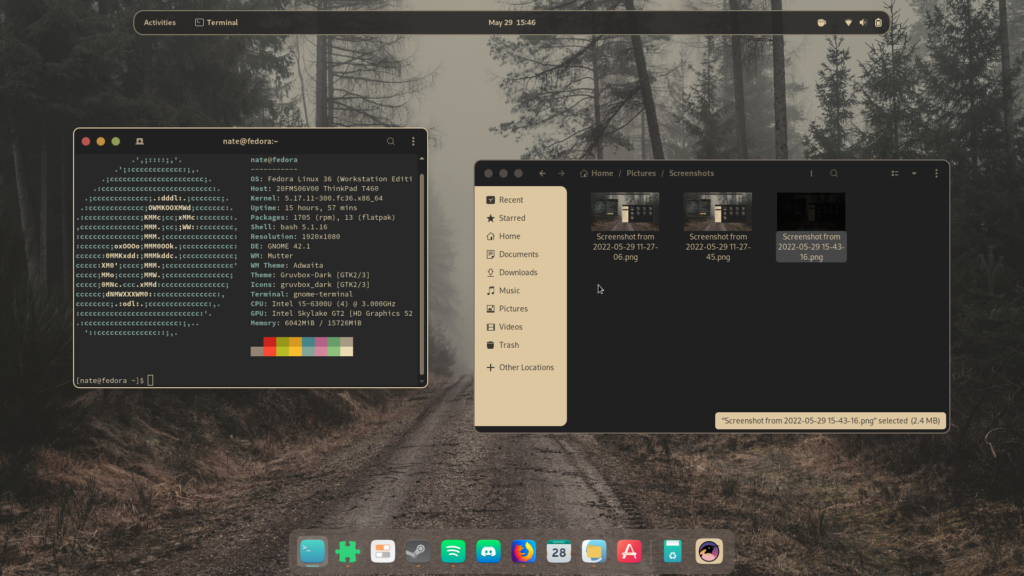
Every developer wants a coding environment that is comfortable, productive, and visually appealing. While programming skills are the most important part of software development, the tools you use can significantly affect your daily workflow. One of the easiest ways to improve your coding experience is by choosing the right color theme.
Among the many themes available today, Gruvbox has become one of the most popular choices for developers. Known for its warm colors, balanced contrast, and retro-inspired design, Gruvbox offers an excellent combination of readability and comfort.
What Is Gruvbox
Gruvbox is a popular color scheme designed for code editors, terminal applications, and integrated development environments. It was originally created for Vim users and later became available for many other tools, including Visual Studio Code, Neovim, IntelliJ IDEA, and terminal emulators.
The theme uses warm, earthy colors instead of bright neon shades. This approach creates a comfortable visual environment that reduces eye strain while maintaining excellent readability.
Developers often choose Gruvbox because it provides a balance between beauty and functionality. It looks attractive without becoming distracting.
Why Developers Choose Gruvbox
Before learning how to install and customize Gruvbox, it is helpful to understand why it has become so popular.The theme offers several important advantages.
Comfortable for Long Coding Sessions
Developers often spend many hours looking at their screens. Gruvbox uses carefully selected colors that feel softer on the eyes compared to many high-contrast themes.This makes it easier to code for extended periods without experiencing significant eye fatigue.
Excellent Readability
Code readability is essential for productivity.Gruvbox highlights syntax elements clearly, making it easy to identify keywords, functions, strings, variables, and comments. This helps developers understand code more quickly and efficiently.
Wide Compatibility
Gruvbox works with many popular development tools.Whether you use Visual Studio Code, Neovim, Vim, IntelliJ IDEA, or terminal applications, you can usually find a Gruvbox version available.
Strong Community Support
Because Gruvbox has been popular for many years, there is a large community of users who create plugins, share settings, and provide installation guides.This makes troubleshooting and customization much easier.
Installing Gruvbox in Visual Studio Code
Visual Studio Code is one of the most widely used code editors today.Installing Gruvbox is simple.
Step 1: Open Extensions
Launch Visual Studio Code and click the Extensions icon in the sidebar.
Step 2: Search for Gruvbox
Type “Gruvbox” into the search bar.Several versions may appear. Choose a trusted and highly rated extension.
Step 3: Install the Theme
Click the Install button and wait for the installation process to complete.
Step 4: Activate Gruvbox
Open the Command Palette and select Color Theme. Choose your preferred Gruvbox version.The theme will be applied immediately.
Installing Gruvbox in Neovim
Neovim users often prefer Gruvbox because of its excellent integration and performance.
Install a Plugin Manager
If you do not already have one, install a plugin manager such as Lazy.nvim or Packer.
Add Gruvbox
Add the Gruvbox repository to your plugin configuration.
Install the Plugin
Run your plugin manager’s installation command.
Enable the Theme
Add the Gruvbox colorscheme command to your configuration file.After restarting Neovim, Gruvbox will become active.
Installing Gruvbox in Vim
The installation process for Vim is very similar.
You simply:
- Install a plugin manager.
- Add the Gruvbox repository.
- Install the theme.
- Set Gruvbox as your active colorscheme.
After restarting Vim, the theme will be ready to use.
Installing Gruvbox in Terminal Applications
Professional developers often customize both their editor and terminal to create a consistent workspace.Many terminal applications support Gruvbox, including:
- Windows Terminal
- Alacritty
- Kitty
- iTerm2
- GNOME Terminal
Most installations involve importing a color configuration file and selecting it as the active profile.
Understanding Gruvbox Variants
One of Gruvbox’s biggest strengths is flexibility.The theme includes multiple variants that allow users to choose the appearance they prefer.
Gruvbox Dark
This is the most popular version.
It works especially well in low-light environments and is often preferred by developers who code at night.
Gruvbox Light
The light version uses a brighter background while maintaining the same warm color palette.
It is ideal for well-lit offices and daytime work.
Soft Contrast
Soft contrast reduces the visual intensity of the theme.Many users choose this option for maximum eye comfort.
Medium Contrast
Medium contrast offers a balanced appearance and is often the default choice.
Hard Contrast
Hard contrast increases separation between elements and can improve visibility on certain displays.
Customizing Gruvbox Like a Professional
Installing Gruvbox is only the beginning.Professional developers often customize the theme to match their workflow and preferences.
Adjust Contrast Settings
The first customization most users make is changing the contrast level.Experiment with soft, medium, and hard contrast settings to find what feels best for your eyes.The right contrast can make a noticeable difference during long coding sessions.
Customize Background Colors
Many Gruvbox implementations allow you to adjust background shades.Some developers prefer darker backgrounds for focus, while others use lighter backgrounds to reduce screen glare.Testing different options can help create a more comfortable environment.
Modify Syntax Highlighting
Advanced users often customize syntax colors.
You can adjust colors for:
- Functions
- Variables
- Keywords
- Strings
- Comments
This allows you to emphasize the code elements that matter most in your workflow.
Match Your Terminal Theme
One common professional practice is using Gruvbox across all development tools.Matching your editor and terminal colors creates a consistent visual experience.This consistency reduces mental distractions and improves focus.
Use a High Quality Programming Font
The right font can make Gruvbox look even better.
Popular options include:
- JetBrains Mono
- Fira Code
- Cascadia Code
- Source Code Pro
These fonts improve readability and support coding features such as ligatures.
Advanced Gruvbox Customization Tips
Experienced developers often take customization further.
Create Custom Color Overrides
Many Gruvbox implementations allow color overrides.This means you can replace specific colors with your own choices while keeping the overall Gruvbox style.
Customize Status Bars
Status bars display important information such as file names, line numbers, and Git status.Customizing these elements helps create a cleaner interface.
Adjust Editor Transparency
Some terminal emulators and editors support transparency.When combined with Gruvbox, subtle transparency can create a modern and attractive workspace.
Build a Complete Gruvbox Ecosystem
Many professionals use Gruvbox not only in their editor but also in:
- Terminal applications
- Git interfaces
- File managers
- Development dashboards
A complete Gruvbox ecosystem creates a unified development environment.
Common Mistakes to Avoid
When customizing Gruvbox, avoid making too many changes at once.Some users replace so many colors that they lose the original balance and readability that make Gruvbox effective.Start with small adjustments and test them during real coding sessions.Another mistake is choosing extremely high contrast settings that create unnecessary eye strain.The goal is comfort and productivity, not maximum brightness.
Is Gruvbox Worth Customizing
The default Gruvbox theme is already excellent, but customization allows you to create a workspace that perfectly matches your needs.Even small changes can improve comfort, readability, and efficiency.Professional developers understand that a well-designed environment can make everyday work more enjoyable.
FAQs
What is Gruvbox used for
Gruvbox is a color theme used in code editors, terminal applications, and development environments.
Is Gruvbox free
Yes, Gruvbox is free and open source.
Does Gruvbox work with Visual Studio Code
Yes, multiple Gruvbox extensions are available for Visual Studio Code.
Can I use Gruvbox in Neovim
Yes, Gruvbox is one of the most popular themes among Neovim users.
What is the difference between Gruvbox Dark and Gruvbox Light
Gruvbox Dark uses a dark background, while Gruvbox Light uses a bright background with the same color philosophy.
Can I customize Gruvbox colors
Yes, many implementations allow users to customize syntax highlighting, contrast levels, and interface colors.
Which contrast setting is best
The best setting depends on personal preference. Many users prefer soft or medium contrast for comfort.
Does Gruvbox help reduce eye strain
Many developers report reduced eye fatigue due to Gruvbox’s warm colors and balanced contrast.
Conclusion
Gruvbox remains one of the most respected and widely used coding themes available today. Its warm color palette, excellent readability, and flexible customization options make it a favorite among developers worldwide.
Installing Gruvbox is simple, whether you use Visual Studio Code, Neovim, Vim, or a terminal application. Once installed, you can customize contrast levels, syntax highlighting, fonts, and interface elements to create a professional coding environment.