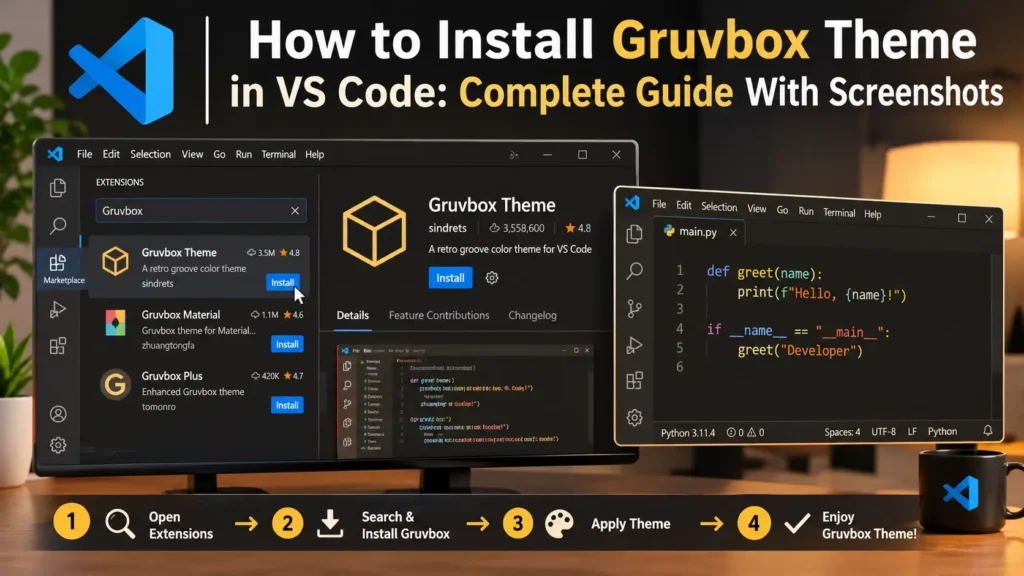
If you want to customize Visual Studio Code (VS Code) with a warm, retro-inspired color palette, Gruvbox is a popular option. It combines charcoal or cream backgrounds with distinctive yellow, green, orange, blue, and red accents. This guide shows you how to install Gruvbox, activate a color variant, customize it, and solve common problems.
Quick answer: Open VS Code → Extensions (Ctrl + Shift + X on Windows/Linux or Cmd + Shift + X on macOS) → search for Gruvbox → install extension jdinhlife.gruvbox → open Preferences: Color Theme → select a Gruvbox variant.
What Is Gruvbox?
Gruvbox is a retro-inspired color scheme originally developed by Pavel Pertsev (morhetz) for Vim. The VS Code adaptation lets you bring its warm colors to the editor, sidebar, and other interface elements. It is a visual theme: installing it does not change your code, language support, or program behavior.
The jdinhlife.gruvbox extension provides six variants: Dark Hard, Dark Medium, Dark Soft, Light Hard, Light Medium, and Light Soft. Pick one according to your lighting conditions and readability preferences.
What You Need Before Installation
- Visual Studio Code installed on Windows, macOS, or Linux.
- An internet connection to access the VS Code Extensions Marketplace.
- Permission to install third-party extensions (some managed work computers restrict this).
You do not need to install Vim or Neovim to use the VS Code extension.
How to Install Gruvbox in VS Code: Eight Steps
Step 1: Open Visual Studio Code
Launch VS Code. You can keep a project open or start from an empty workspace. If you need the editor, download it from https://code.visualstudio.com/.
Screenshot to add: VS Code main window with Activity Bar visible. Suggested filename: 01-vscode-home.png.
Step 2: Open the Extensions Panel
Click the Extensions icon in the Activity Bar. Or press Ctrl + Shift + X on Windows/Linux, or Cmd + Shift + X on macOS. The Marketplace search field will appear.
Screenshot to add: Extensions panel highlighted. Suggested filename: 02-extensions-panel.png.
Step 3: Search for Gruvbox
Type Gruvbox in the Extensions search box. Find the extension with identifier jdinhlife.gruvbox. Several extensions have similar names, so verify the identifier and publisher before proceeding.
Official listing: https://marketplace.visualstudio.com/items?itemName=jdinhlife.gruvbox
Screenshot to add: Search results with the correct extension highlighted. Suggested filename: 03-search-gruvbox.png.
Step 4: Open the Extension Details
Select the Gruvbox result. Review the extension name, publisher, supported variants, description, and any preview images to confirm it is the theme you want.
Screenshot to add: Extension details page showing its title and Install button. Suggested filename: 04-gruvbox-details.png.
Step 5: Click Install
Click Install. VS Code downloads and enables the extension. Most color themes can be activated without restarting the editor. If a security or trust prompt appears, review it before proceeding.
Screenshot to add: Installed extension details page. Suggested filename: 05-installed.png.
Step 6: Open the Color Theme Picker
Open the Command Palette: Ctrl + Shift + P on Windows/Linux or Cmd + Shift + P on macOS. Search for Preferences: Color Theme and select it. The direct shortcut is Ctrl + K, then Ctrl + T on Windows/Linux, or Cmd + K, then Cmd + T on macOS.
Screenshot to add: Command Palette with Preferences: Color Theme selected. Suggested filename: 06-theme-command.png.
Step 7: Select a Gruvbox Variant
Choose one of the six themes:
| Variant | Appearance |
|---|---|
| Gruvbox Dark Hard | Deepest of the dark backgrounds |
| Gruvbox Dark Medium | Standard Gruvbox dark background |
| Gruvbox Dark Soft | Slightly lighter dark background |
| Gruvbox Light Hard | Pale cream background |
| Gruvbox Light Medium | Standard Gruvbox light background |
| Gruvbox Light Soft | Richer cream-colored background |
Use the arrow keys to preview a theme and press Enter to apply it. Dark Medium is a good starting point if you prefer dark editor themes.
Screenshot to add: Color Theme picker displaying Gruvbox variants. Suggested filename: 07-choose-theme.png.
Step 8: Verify the Theme
Open a JavaScript file and paste:
const theme = "Gruvbox";
function greet(name) {
  console.log(`Hello, ${name}!`);
}
greet("Developer");
Save it with the .js extension. Look for changed editor backgrounds and syntax highlighting. If nothing changes, reopen the Color Theme picker and select Gruvbox manually.
Screenshot to add: Actual VS Code editor with Gruvbox active. Suggested filename: 08-gruvbox-active.png.
Gruvbox Dark and Light: Visual Preview
The following two images are illustrative palette previews, not screenshots of VS Code. They use original Gruvbox colors to help you compare the two appearances.
Official extension comparison image: https://raw.githubusercontent.com/jdinhify/vscode-theme-gruvbox/main/images/screenshots.jpg
Alternative Installation: Quick Open
Press Ctrl + P (Windows/Linux) or Cmd + P (macOS), then enter:
ext install jdinhlife.gruvboxFollow any prompts and then select a Gruvbox option through Preferences: Color Theme. This method is handy when you already know the extension identifier.
Alternative Installation: Command Line
If the VS Code code command-line launcher is available, open a system terminal and run:
code --install-extension jdinhlife.gruvboxThen open VS Code and select a Gruvbox theme. If you see code: command not found, set up the VS Code launcher in your PATH or use the Extensions panel instead. On macOS, VS Code offers Shell Command: Install ‘code’ command in PATH in the Command Palette.
Gruvbox Dark vs. Gruvbox Light
The primary difference is the background-and-foreground color relationship. Gruvbox Dark uses light text on warm charcoal backgrounds; Gruvbox Light uses dark text on cream backgrounds. Neither variant changes how your code runs.
| Feature | Gruvbox Dark | Gruvbox Light |
|---|---|---|
| Main background | Warm charcoal | Cream/beige |
| Default original HEX | #282828 | #FBF1C7 |
| Main text | Light | Dark |
| Other settings | Hard, Medium, Soft | Hard, Medium, Soft |
| Best for | Those who prefer dark interfaces | Those who prefer light interfaces |
The original dark palette also uses #1D2021 (Hard) and #32302F (Soft). The original light palette uses #F9F5D7 (Hard) and #F2E5BC (Soft). Exact color assignments can vary across ports.
How to Switch Between Dark and Light
Open Preferences: Color Theme, select the preferred Gruvbox entry, and press Enter. You can switch as often as you like without reinstalling the extension or modifying your files.
To follow compatible OS light/dark mode changes automatically, add this to VS Code’s settings.json (using the exact theme names shown by your installed extension):
{
  "window.autoDetectColorScheme": true,
  "workbench.preferredDarkColorTheme": "Gruvbox Dark Medium",
  "workbench.preferredLightColorTheme": "Gruvbox Light Medium"
}
How to Customize Gruvbox
Open Preferences: Open User Settings (JSON). Add only the properties you need, merging them with your existing settings rather than replacing your full file.
Adjust the Font
{
  "editor.fontFamily": "JetBrains Mono, Consolas, monospace",
  "editor.fontSize": 15,
  "editor.lineHeight": 24
}
Install JetBrains Mono separately if you want to use it; VS Code will otherwise fall back to a later font in the list.
Override Editor Colors
{
  "workbench.colorCustomizations": {
    "editor.background": "#282828",
    "editor.foreground": "#EBDBB2"
  }
}
Adjust Syntax Colors
{
  "editor.tokenColorCustomizations": {
    "comments": "#928374",
    "strings": "#B8BB26",
    "keywords": "#FB4934"
  }
}
Some syntax colors can be influenced by semantic highlighting and language extensions.
Troubleshooting Common Problems
Gruvbox Is Missing From the Theme List
Return to Extensions and confirm that jdinhlife.gruvbox is installed and enabled. Reload the VS Code window if necessary; then reopen the Color Theme picker.
The Extension Installed but the Editor Looks the Same
The extension may be installed without being selected. Run Preferences: Color Theme and apply a Gruvbox variant.
Colors Don’t Match Online Screenshots
Check whether you’re using Dark Hard, Medium, or Soft and confirm you’re looking at the same Gruvbox port. Remove custom workbench.colorCustomizations or editor.tokenColorCustomizations overrides temporarily if they are changing the appearance.
Terminal Colors Look Different
Command-line applications can generate their own ANSI colors. Check your integrated terminal colors and whether the program running within the terminal overrides them.
Text Is Hard to Read
Try a different variant, increase font size, adjust display brightness, and check foreground/background contrast. Warm colors don’t guarantee accessibility or prevent eye strain.
Command-Line Installation Fails
Make sure code is on your PATH. If it isn’t, use the VS Code Marketplace to install the extension directly.
How to Update or Uninstall Gruvbox
Open the Extensions panel, find Gruvbox, and open its management options. Install any available updates, or select Uninstall to remove the theme. Removing the theme does not delete your source code.
Frequently Asked Questions
Is Gruvbox free in VS Code?
Yes. The jdinhlife.gruvbox extension can be installed from the VS Code Marketplace at no charge.
Do I need Vim to install Gruvbox in VS Code?
No. The VS Code extension works independently of Vim and Neovim.
How do I activate Gruvbox Dark?
Open Preferences: Color Theme, then select Gruvbox Dark Hard, Medium, or Soft.
Can I use Gruvbox for Python, JavaScript, and HTML?
Yes. You can use Gruvbox while editing supported programming languages in VS Code. Syntax highlighting varies by language support and active extensions.
Why isn’t Gruvbox showing up after installation?
Confirm the extension is enabled and choose it manually from the Color Theme picker. Reload the window if needed.
Which Gruvbox variant is best?
There is no universal winner. Dark Medium and Light Medium are sensible starting points; choose based on comfort and readability.
Can VS Code switch automatically from dark to light?
Yes, with window.autoDetectColorScheme and preferred light/dark themes configured, provided the operating system supports appearance switching.
Can I customize the colors?
Yes. VS Code supports editor/workbench overrides and token color customizations through settings.json.
Final Thoughts
Installing the Gruvbox theme in VS Code takes only a few steps: find the extension, install it, and activate a variant in the Color Theme picker. Its warm palette and multiple dark and light options make it an appealing choice for developers who want a distinct editor appearance. Start with Dark Medium or Light Medium, test readability with your own code, and customize only as needed.