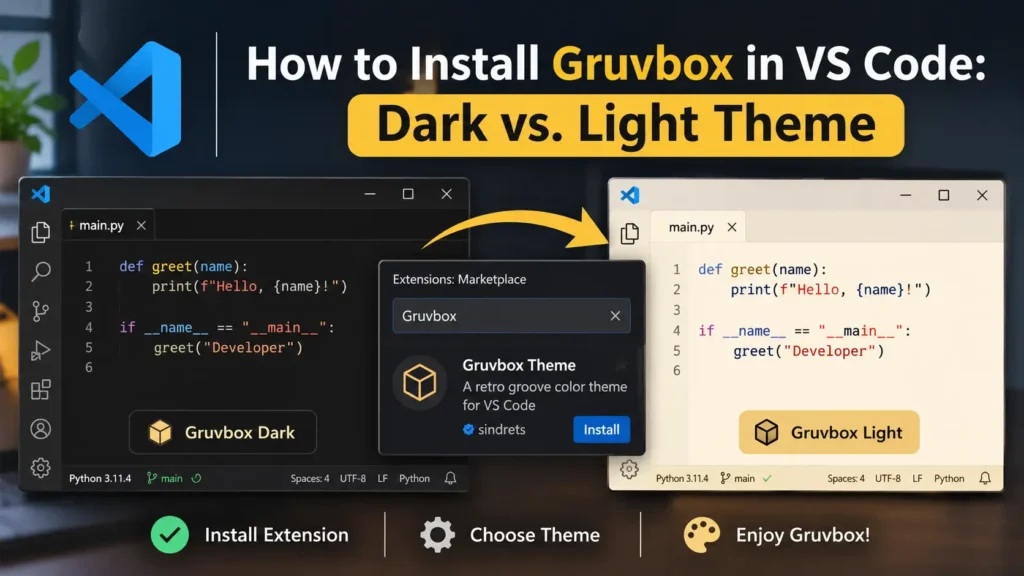
Choosing the right color theme for Visual Studio Code (VS Code) can make your coding environment more comfortable, organized, and visually appealing. While VS Code includes several built-in themes, many developers prefer custom options that offer a distinctive appearance and greater flexibility.
One popular choice is Gruvbox, a retro-inspired color theme known for its warm backgrounds, earthy colors, and carefully balanced syntax highlighting.
Whether you prefer a dark coding environment or a brighter workspace, Gruvbox offers several options that can match your personal preferences.
If you’re wondering how to install Gruvbox in VS Code or whether Gruvbox Dark is better than Gruvbox Light, this guide covers everything you need to know.
You’ll learn how to install and activate the theme, explore its color variants, customize its appearance, troubleshoot common problems, and choose the most suitable version for your workflow.
What Is the Gruvbox Theme in VS Code?
Gruvbox is a retro-inspired color scheme originally created by Pavel Pertsev for the Vim text editor. Its distinctive combination of warm backgrounds, muted accent colors, and contrasting syntax highlighting has made it a recognizable theme in developer communities.
The theme was designed to make different colors easy to distinguish while maintaining a pleasant overall appearance.
Today, Gruvbox is available for several development tools, including Visual Studio Code.
The VS Code implementation offers syntax highlighting along with colors for various interface elements, including the editor, sidebar, and integrated terminal.
Unlike themes that rely heavily on pure black, white, or bright neon colors, Gruvbox uses warmer shades of brown, cream, yellow, green, red, and blue.
These colors create a recognizable appearance that works across both its dark and light versions.
Key Features of Gruvbox
Gruvbox offers several features that make it appealing to developers:
- Dark and light modes: Choose between darker backgrounds and warm cream-colored alternatives.
- Multiple contrast options: Select hard, medium, or soft contrast settings.
- Syntax highlighting: Distinguish programming elements through different foreground colors.
- Customizable appearance: Adjust specific interface and syntax colors using VS Code settings.
- Cross-platform compatibility: Use the theme on Windows, macOS, and Linux through VS Code.
- Retro-inspired design: Enjoy a warm color palette that differs from many conventional editor themes.
These features make Gruvbox suitable for both beginners experimenting with editor customization and experienced programmers who want a consistent visual style.
How to Install Gruvbox in VS Code: Step-by-Step Guide
Installing Gruvbox in Visual Studio Code is straightforward and does not require advanced technical knowledge.
The easiest method is to download the extension directly from the Visual Studio Marketplace.
Step 1: Open Visual Studio Code
Start by launching Visual Studio Code on your Windows, macOS, or Linux computer.
Make sure VS Code is installed and functioning correctly.
If you haven’t installed it yet, download it from the official Visual Studio Code website and complete the installation before proceeding.
Step 2: Open the Extensions Panel
After opening VS Code, locate the Extensions icon in the left sidebar.
Click the icon to open the Extensions Marketplace.
You can also use the following keyboard shortcuts:
| Operating System | Shortcut |
|---|---|
| Windows | Ctrl + Shift + X |
| Linux | Ctrl + Shift + X |
| macOS | Cmd + Shift + X |
The Extensions panel allows you to search for additional themes, programming tools, and editor features.
Step 3: Search for Gruvbox
In the Extensions search bar, type:
Gruvbox
VS Code will display available extensions matching your search.
Look for Gruvbox, with the extension identifier jdinhlife.gruvbox.
This implementation includes dark and light themes with multiple contrast settings.
Before installing, verify the extension’s name and identifier because several similarly named Gruvbox themes are available.
Step 4: Install the Gruvbox Extension
Select the Gruvbox extension from the search results.
Open its details page and click Install.
VS Code will download and install the extension.
In most cases, you can start using the theme without restarting the application.
You can also open its official listing directly:
Gruvbox Theme — Visual Studio Marketplace
Step 5: Activate the Gruvbox Theme
Once the extension is installed, you need to select a Gruvbox color theme.
Follow these steps:
- Open the Command Palette using
Ctrl + Shift + Pon Windows or Linux, orCmd + Shift + Pon macOS. - Search for Preferences: Color Theme.
- Select the command to display the available themes.
- Scroll through the list and find a Gruvbox variant.
- Select your preferred version.
The appearance of your VS Code workspace will update immediately.
You can preview different options before making your final selection.
Step 6: Choose Your Preferred Gruvbox Variant
The jdinhlife.gruvbox extension offers six main variants:
| Theme Variant | Appearance |
|---|---|
| Gruvbox Dark Medium | Standard warm dark theme |
| Gruvbox Dark Hard | Darker background with stronger contrast |
| Gruvbox Dark Soft | Slightly lighter dark background |
| Gruvbox Light Medium | Standard warm light theme |
| Gruvbox Light Hard | Paler light background |
| Gruvbox Light Soft | Deeper cream-colored background |
If you’re new to Gruvbox, start with Dark Medium or Light Medium.
These standard variants provide a useful reference point before experimenting with other contrast settings.
How to Install Gruvbox Using the VS Code Command Palette
Another quick installation method uses the extension identifier.
This approach is useful when you already know which extension you want.
First, launch VS Code and open Quick Open:
- Windows/Linux:
Ctrl + P - macOS:
Cmd + P
Enter the following command:
ext install jdinhlife.gruvboxPress Enter and follow the installation prompt.
After installing the extension, open the Color Theme selector and activate your preferred Gruvbox variant.
This command is specifically documented by the extension publisher and provides a direct alternative to searching the Marketplace manually.
How to Install Gruvbox Using the VS Code Terminal
You can also install the Gruvbox extension through the VS Code command-line interface.
If the code command is available in your system’s terminal, run:
code --install-extension jdinhlife.gruvboxThis command instructs VS Code to install the extension with the specified identifier.
After the installation finishes, open VS Code and select your desired color theme.
If your terminal reports that the code command is not recognized, you may need to add the VS Code command-line tool to your system’s PATH.
The terminal method is particularly convenient for developers who frequently set up new workstations or use automated configuration scripts.
Gruvbox Dark vs. Light Theme: What’s the Difference?
The main difference between Gruvbox Dark and Gruvbox Light is their background and foreground color balance.
Gruvbox Dark uses deep charcoal and brown backgrounds with lighter text, while Gruvbox Light uses warm cream backgrounds with darker text.
Both versions maintain the general Gruvbox design philosophy, but they create noticeably different visual experiences.
<text>A quick comparison of the original Gruvbox palette:</text>
Gruvbox Dark
<box background=”#282828″ theme=”dark” radius=”lg” padding={3} gap={2}>
<row align=”center” justify=”between”>
<text color=”#ebdbb2″ weight=”medium”>sample.js</text>
<text color=”#928374″ size=”xs”>Dark Medium</text>
</row>
<box background=”#3c3836″ padding={3} radius=”md”>
<text color=”#928374″ size=”xs”>{“// Gruvbox Dark theme”}</text>
<row gap={1} wrap=”wrap”>
<text color=”#fb4934″ size=”sm”>const</text>
<text color=”#83a598″ size=”sm”>theme</text>
<text color=”#ebdbb2″ size=”sm”>=</text>
<text color=”#b8bb26″ size=”sm”>”gruvbox-dark”;</text>
</row>
<row gap={1} wrap=”wrap”>
<text color=”#fabd2f” size=”sm”>console</text>
<text color=”#ebdbb2″ size=”sm”>.</text>
<text color=”#8ec07c” size=”sm”>log</text>
<text color=”#ebdbb2″ size=”sm”>(theme);</text>
</row>
</box>
</box>
Gruvbox Dark features a deep, warm background with cream-colored text and colorful syntax highlighting.
Its appearance is particularly appealing to developers who prefer darker interfaces without the stark contrast of pure black and white.
Main Features of Gruvbox Dark
Gruvbox Dark uses backgrounds such as #282828, accompanied by light foreground colors and distinctive syntax accents.
The overall interface feels warm, subdued, and retro-inspired.
Its three contrast variations allow users to choose between deeper charcoal backgrounds and slightly lighter alternatives.
Advantages of Gruvbox Dark
Comfortable appearance in dim environments: Some developers prefer dark interfaces when working in rooms with reduced ambient lighting.
Distinctive syntax colors: Reds, greens, yellows, and blues stand out against the darker background.
Reduced bright screen area: A dark interface produces less bright surface area than a cream-colored theme at the same display settings.
Consistent retro styling: Warm dark backgrounds create a cohesive appearance across editor panels and supported terminal colors.
Limitations of Gruvbox Dark
Dark themes are not ideal for everyone.
Some users find light text on dark backgrounds more difficult to read, especially when using small fonts or working in bright environments.
Additionally, certain syntax colors may offer insufficient contrast against particular background shades.
Gruvbox Light
<box background=”#fbf1c7″ theme=”light” radius=”lg” padding={3} gap={2}>
<row align=”center” justify=”between”>
<text color=”#3c3836″ weight=”medium”>sample.js</text>
<text color=”#7c6f64″ size=”xs”>Light Medium</text>
</row>
<box background=”#ebdbb2″ padding={3} radius=”md”>
<text color=”#7c6f64″ size=”xs”>{“// Gruvbox Light theme”}</text>
<row gap={1} wrap=”wrap”>
<text color=”#9d0006″ size=”sm”>const</text>
<text color=”#076678″ size=”sm”>theme</text>
<text color=”#3c3836″ size=”sm”>=</text>
<text color=”#79740e” size=”sm”>”gruvbox-light”;</text>
</row>
<row gap={1} wrap=”wrap”>
<text color=”#b57614″ size=”sm”>console</text>
<text color=”#3c3836″ size=”sm”>.</text>
<text color=”#427b58″ size=”sm”>log</text>
<text color=”#3c3836″ size=”sm”>(theme);</text>
</row>
</box>
</box>
Gruvbox Light takes the same retro-inspired design and adapts it to a brighter environment.
Instead of a charcoal background, it uses shades of beige and cream with darker text.
The result is a warm light theme that looks different from the plain white backgrounds found in many editors.
Main Features of Gruvbox Light
The standard light background uses #FBF1C7.
Darker foreground text helps provide separation from the lighter background, while the syntax colors use shades appropriate for the light palette.
Like Gruvbox Dark, the light version offers hard, medium, and soft contrast settings.
Advantages of Gruvbox Light
Suitable for bright workspaces: Some users find dark text on a light background easier to read in environments with strong ambient lighting.
Warm background colors: Cream and beige shades provide an alternative to standard white interfaces.
Familiar text appearance: Dark text on a light surface resembles many websites, documents, and printed materials.
Flexible contrast options: Users can experiment with different background shades to find a preferred appearance.
Limitations of Gruvbox Light
Gruvbox Light may feel too bright for people who prefer dark interfaces, particularly when working in a dimly lit room.
Some users may also find the warm beige tones less appealing than white or cool-gray backgrounds.
As with Gruvbox Dark, individual syntax colors should be evaluated for sufficient readability.
Gruvbox Dark vs. Light: Complete Comparison
The following table summarizes the main differences between the two themes.
| Feature | Gruvbox Dark | Gruvbox Light |
|---|---|---|
| Background | Dark charcoal and brown | Warm cream and beige |
| Main text | Light-colored | Dark-colored |
| Overall appearance | Dark retro aesthetic | Bright retro aesthetic |
| Standard background HEX | #282828 | #FBF1C7 |
| Contrast variants | Hard, Medium, Soft | Hard, Medium, Soft |
| Bright room preference | Depends on individual readability | Often preferred |
| Dim room preference | Often preferred | Depends on screen brightness |
| Syntax highlighting | Colors adapted to dark backgrounds | Colors adapted to light backgrounds |
| Customization | Supported | Supported |
| VS Code compatibility | Yes | Yes |
Both versions are fully usable for programming. Neither has an inherent advantage in code execution speed, software performance, or programming functionality.
The primary differences are visual.
Gruvbox Color Palette: Dark and Light HEX Codes
Understanding the Gruvbox color palette can help you choose a theme and customize your interface.
The original Gruvbox palette includes three primary background options for each mode.
Gruvbox Background Colors
<box gap={3}>
<grid columns={3} gap={2}>
{#each [{name:”Dark Hard”,hex:”#1D2021″},{name:”Dark Medium”,hex:”#282828″},{name:”Dark Soft”,hex:”#32302F”},{name:”Light Hard”,hex:”#F9F5D7″},{name:”Light Medium”,hex:”#FBF1C7″},{name:”Light Soft”,hex:”#F2E5BC”}] as c}
<grid-item>
<box gap={1}>
<box background={c.hex} height=”65px” radius=”md” border={{size:1,color:”subtle”}}/>
<text size=”xs” weight=”medium”>{c.name}</text>
<row align=”center” justify=”between” gap={1}>
<text color=”secondary” size=”2xs”>{c.hex}</text>
<button size=”xs” variant=”ghost” color=”secondary” onClick={()=>GenUI.copy(c.hex)}><icon name=”copy” size=”xs”/></button>
</row>
</box>
</grid-item>
{/each}
</grid>
</box>
Gruvbox Accent Colors
<box gap={2}>
{#each [{name:”Red”,hex:”#FB4934″},{name:”Green”,hex:”#B8BB26″},{name:”Yellow”,hex:”#FABD2F”},{name:”Blue”,hex:”#83A598″},{name:”Purple”,hex:”#D3869B”},{name:”Aqua”,hex:”#8EC07C”},{name:”Orange”,hex:”#FE8019″}] as c}
<row align=”center” gap={3}>
<box background={c.hex} size=”32px” radius=”sm”/>
<box flex=”1″><text weight=”medium” size=”sm”>{c.name}</text></box>
<text color=”secondary” size=”sm”>{c.hex}</text>
<button variant=”ghost” color=”secondary” size=”xs” onClick={()=>GenUI.copy(c.hex)}><icon name=”copy” size=”sm”/></button>
</row>
{/each}
</box>
These HEX values are drawn from the original Gruvbox palette. Individual VS Code ports may use different shades or apply them to different syntax elements.
Gruvbox Hard vs. Medium vs. Soft Contrast
Another important feature of Gruvbox is the ability to select different background contrast levels.
These options are available in both dark and light modes.
Gruvbox Hard
Gruvbox Hard uses a deeper background in dark mode and a paler background in light mode.
Its background colors are:
- Dark Hard:
#1D2021 - Light Hard:
#F9F5D7
This version is worth testing if you prefer more pronounced background separation.
Gruvbox Medium
Gruvbox Medium represents the standard background setting.
Its colors include:
- Dark Medium:
#282828 - Light Medium:
#FBF1C7
Medium is a practical starting point for new users because it represents the classic balance of the Gruvbox palette.
Gruvbox Soft
Gruvbox Soft adjusts the background toward less extreme shades.
Its colors include:
- Dark Soft:
#32302F - Light Soft:
#F2E5BC
In dark mode, the background appears slightly lighter. In light mode, the background appears somewhat deeper and warmer.
Note: The contrast names describe the palette variants, not guaranteed accessibility ratings. Actual text contrast must be evaluated using the foreground and background colors together.
Which Gruvbox Theme Is Best for Coding?
The best Gruvbox theme depends on your lighting conditions, visual preferences, and the type of work you perform.
There is no single version that works best for every developer.
Best for Developers Who Prefer Dark Interfaces
Gruvbox Dark Medium is a strong starting choice.
Its charcoal background and warm text colors create the classic Gruvbox appearance.
If you prefer a deeper background, try Dark Hard.
If you want a slightly lighter dark interface, test Dark Soft.
Best for Developers Working in Bright Rooms
Gruvbox Light Medium is worth considering.
Its cream-colored background and darker text can provide a familiar reading experience in well-lit environments.
You can also experiment with Light Hard and Light Soft to find your preferred background shade.
Best for Beginners
Both Gruvbox Dark Medium and Gruvbox Light Medium are easy starting points.
Beginners should focus on text clarity, comfortable font sizing, and a theme that makes syntax elements easy to distinguish.
Best for Long Coding Sessions
Personal comfort matters more than whether a theme is labeled dark or light.
Test both versions under your usual lighting conditions.
Adjust the screen brightness and font size, and pay attention to whether comments, punctuation, keywords, and error messages remain easy to read.
A theme that works well for someone else may not be the best choice for your eyes.
How to Switch Between Gruvbox Dark and Light in VS Code
You can change your Gruvbox theme whenever you want without reinstalling the extension.
Follow these steps:
- Open Visual Studio Code.
- Press
Ctrl + K, thenCtrl + Ton Windows or Linux. On macOS, pressCmd + K, thenCmd + T. - The Color Theme picker will appear.
- Select a Gruvbox Dark or Light variant.
- Press Enter to apply the theme.
You can repeat these steps whenever you want to switch.
VS Code also allows users to preview available themes before selecting one.
How to Automatically Switch Gruvbox Between Dark and Light Mode
Visual Studio Code includes a setting that can automatically change its theme based on the operating system’s light or dark appearance.
This feature is useful if you frequently switch between light and dark modes.
To configure automatic theme switching:
- Open VS Code Settings.
- Search for Auto Detect Color Scheme.
- Enable the setting.
- Configure your preferred dark and light color themes.
- Make sure your operating system supports automatic light and dark appearance changes.
You can also configure these settings directly in settings.json.
For example:
{
  "window.autoDetectColorScheme": true,
  "workbench.preferredDarkColorTheme": "Gruvbox Dark Medium",
  "workbench.preferredLightColorTheme": "Gruvbox Light Medium"
}
The theme names should match the installed extension’s theme labels. If they differ, choose the exact names shown in your Color Theme selector.
This setup allows VS Code to follow supported operating-system appearance changes.
How to Customize Gruvbox in VS Code
Installing Gruvbox is only the beginning. Visual Studio Code provides additional settings for personalizing colors, fonts, and editor behavior.
Change the Editor Font
The font you choose can make a noticeable difference in how your coding environment looks.
To change it, open Settings and search for Font Family.
You can select a coding font installed on your computer.
Popular choices include:
- JetBrains Mono
- Fira Code
- Cascadia Code
- Source Code Pro
For example, you can add the following settings:
{
  "editor.fontFamily": "JetBrains Mono, Consolas, monospace",
  "editor.fontSize": 15,
  "editor.lineHeight": 24
}
This configuration changes the font family, font size, and line spacing.
JetBrains Mono must be installed on your computer for VS Code to use it.
Customize the Editor Background
You can also override selected Gruvbox colors.
For example, the following configuration uses the original Gruvbox Dark Medium background:
{
  "workbench.colorCustomizations": {
    "editor.background": "#282828",
    "editor.foreground": "#EBDBB2"
  }
}
This approach is useful if you like the overall theme but want to adjust specific colors.
Be careful when making changes because a new foreground or background combination can reduce readability.
Customize Syntax Highlighting
VS Code provides the editor.tokenColorCustomizations setting for modifying syntax colors.
For example:
{
  "editor.tokenColorCustomizations": {
    "comments": "#928374",
    "strings": "#B8BB26",
    "keywords": "#FB4934"
  }
}
This example changes the colors used for comments, strings, and keywords where the corresponding highlighting rules apply.
Some syntax elements may also be affected by semantic highlighting, language extensions, or theme-specific rules.
Adjust the Integrated Terminal
The integrated terminal can be customized through VS Code settings.
For example:
{
  "workbench.colorCustomizations": {
    "terminal.background": "#282828",
    "terminal.foreground": "#EBDBB2",
    "terminalCursor.foreground": "#FABD2F"
  }
}
These settings provide a Gruvbox-inspired appearance inside the terminal.
You can also customize the terminal’s ANSI color palette for greater consistency.
Common Gruvbox Installation Problems and How to Fix Them
Even though installing Gruvbox is usually simple, some users may encounter issues.
Here are common problems and their possible solutions.
Problem 1: Gruvbox Does Not Appear in the Theme List
If Gruvbox is missing from your Color Theme picker, the extension may not be installed or enabled correctly.
Solution:
Open the Extensions panel and search for jdinhlife.gruvbox.
Verify that the extension is installed and enabled.
If necessary, reload the VS Code window and open the Color Theme selector again.
Problem 2: Gruvbox Is Installed but Not Applied
Installing a theme extension does not always mean it automatically becomes your active theme.
Solution:
Open the Command Palette, select Preferences: Color Theme, and choose your desired Gruvbox variant.
Problem 3: The Theme Colors Look Different From Screenshots
Your colors may differ because of custom settings, different theme implementations, monitor settings, or installed extensions.
Solution:
Check the active theme name and review your workbench.colorCustomizations and editor.tokenColorCustomizations settings.
Temporarily disable color overrides to see whether they are affecting the appearance.
Also verify that you’re using the same theme variant shown in the screenshot.
Problem 4: Gruvbox Text Is Difficult to Read
Some users may find particular accent colors too muted or insufficiently distinguishable.
Solution:
Try another contrast variant, increase the editor font size, or customize the affected foreground colors.
For accessibility-sensitive use, check text contrast rather than relying only on how the theme looks.
Problem 5: Gruvbox Does Not Change the Terminal Appearance
Some terminal programs and command-line applications generate their own colors.
Solution:
Check VS Code’s terminal color settings and determine whether the output comes from the terminal theme or the application running inside it.
Adjust the terminal’s ANSI colors when necessary.
Problem 6: Gruvbox Stops Working After an Update
Occasionally, an editor update, extension conflict, or corrupted configuration can affect a theme’s appearance.
Solution:
Check for extension updates, reload the editor, and review your custom theme settings.
You can also disable and re-enable the extension.
If the problem continues, consult the extension’s GitHub repository for reported issues.
Is Gruvbox Dark Better for Your Eyes Than Gruvbox Light?
This is a common question among developers who spend several hours looking at a computer screen.
The answer depends on individual preferences and working conditions.
Gruvbox Dark reduces the amount of bright background area displayed on the screen. Some users find this more comfortable in dim environments.
Gruvbox Light uses dark text on a bright background, which some people prefer in well-lit rooms.
However, neither theme has been proven to prevent eye strain or protect eyesight simply because of its color palette.
Visual comfort depends on several factors, including screen brightness, ambient lighting, font size, contrast, and individual vision.
For example, users who struggle with bright screens may prefer a dark theme, while those who have difficulty reading light text on dark backgrounds may prefer light mode.
For the best experience, choose a theme that makes text easy to read and adjust your workspace lighting appropriately.
Does Gruvbox Affect VS Code Performance?
Gruvbox primarily changes how VS Code looks.
A normal color theme does not alter the behavior of your programming language, compiler, or application code.
In general, switching between Gruvbox Dark and Gruvbox Light should not produce a meaningful performance difference.
Actual editor performance is more likely to depend on factors such as:
- Installed extensions
- Workspace size
- Language servers
- Background processes
- Available memory
- Computer hardware
If VS Code becomes slow after changing themes, check whether another installed extension or editor feature is contributing to the issue.
Gruvbox vs. Other Popular VS Code Themes
Gruvbox is not the only color theme available for VS Code.
Several other themes offer different visual styles.
| Theme | General Appearance | Distinguishing Feature |
|---|---|---|
| Gruvbox | Warm and retro-inspired | Earthy colors with dark and light variants |
| One Dark Pro | Dark and modern | Familiar dark editor appearance |
| Dracula | Dark with colorful accents | Purple-toned background and vibrant syntax colors |
| Solarized | Balanced, distinctive palette | Coordinated dark and light appearances |
| GitHub Theme | Clean and understated | Appearance inspired by GitHub interfaces |
| Catppuccin | Pastel-oriented | Multiple coordinated color palettes |
Gruvbox stands out because of its warm backgrounds and recognizable retro styling.
However, the best theme is the one that makes your code easiest to read while matching your preferences.
Tips for Getting the Best Gruvbox Experience
Once Gruvbox is installed, a few small adjustments can help you build a more comfortable coding workspace.
Choose an appropriate font size. Text that is too small can be difficult to read regardless of the theme.
Match screen brightness to your surroundings. Excessive brightness in a dark room or insufficient brightness in a sunny room can affect readability.
Experiment with contrast variants. Dark Hard, Dark Medium, and Dark Soft can look noticeably different.
Keep the extension updated. Updates may include bug fixes, compatibility improvements, or visual changes.
Avoid excessive color overrides. Too many custom colors can make the editor visually inconsistent.
Use accessible text colors. Check whether important text remains distinguishable against its background.
Try both modes before deciding. A theme that looks appealing in screenshots may feel different during regular coding sessions.
Frequently Asked Questions About Gruvbox in VS Code
1. How do I install Gruvbox in VS Code?
Open the Extensions panel, search for Gruvbox, and install the extension identified as jdinhlife.gruvbox. Then open Preferences: Color Theme and select a Gruvbox variant.
2. Is Gruvbox free to use in VS Code?
Yes. The Gruvbox theme extension discussed in this guide is available for free, and its GitHub project uses the MIT license.
3. What is the difference between Gruvbox Dark and Light?
Gruvbox Dark uses dark charcoal and brown backgrounds with lighter text. Gruvbox Light uses warm cream backgrounds with darker text. Both provide syntax highlighting and different contrast settings.
4. Which Gruvbox theme is best for beginners?
Gruvbox Dark Medium and Gruvbox Light Medium are good starting points because they represent the standard background styles. Beginners can switch between them to find their preferred appearance.
5. Can I switch from Gruvbox Dark to Light without reinstalling?
Yes. Open the VS Code Color Theme picker and choose a different Gruvbox variant. You do not need to reinstall the extension.
6. What are the six Gruvbox themes in VS Code?
The jdinhlife.gruvbox extension provides Dark Hard, Dark Medium, Dark Soft, Light Hard, Light Medium, and Light Soft variants.
7. What is the HEX code for Gruvbox Dark?
The standard Gruvbox Dark background uses #282828. Dark Hard uses #1D2021, while Dark Soft uses #32302F.
8. What is the HEX code for Gruvbox Light?
The standard Gruvbox Light background uses #FBF1C7. Light Hard uses #F9F5D7, while Light Soft uses #F2E5BC.
9. Does Gruvbox support Python, JavaScript, and HTML?
Yes. Gruvbox can be used while editing Python, JavaScript, HTML, CSS, and many other programming languages in VS Code. The exact syntax highlighting depends on the editor and language support.
10. Can I customize Gruvbox colors?
Yes. You can customize interface colors using workbench.colorCustomizations and syntax highlighting using editor.tokenColorCustomizations.
11. Can VS Code automatically switch between Gruvbox Dark and Light?
Yes. VS Code supports automatic theme switching based on compatible operating-system appearance settings. Configure window.autoDetectColorScheme and select your preferred light and dark themes.
12. Is Gruvbox Dark suitable for long coding sessions?
Some developers prefer dark interfaces for extended use, but comfort varies from person to person. Appropriate brightness, font size, lighting, and readable contrast matter more than theme popularity.
13. Why is Gruvbox not working in VS Code?
Possible reasons include an incomplete installation, disabled extension, incorrect active theme, or conflicting custom settings. Verify the extension is enabled and select your theme through the Color Theme picker.
14. What is Gruvbox Material?
Gruvbox Material is an alternative version of the Gruvbox color scheme that uses adjusted palette and contrast options. Separate implementations are available for supported editors, including VS Code.
15. Can I uninstall Gruvbox from VS Code?
Yes. Open the Extensions panel, find the installed Gruvbox extension, and select Uninstall. You can then select another color theme.
Conclusion
Gruvbox is an excellent option to explore if you want to personalize Visual Studio Code with a warm, retro-inspired color palette.
Installing it is simple: find the Gruvbox extension in the Visual Studio Marketplace, install it, and choose your preferred version from the Color Theme picker.
The most important decision is whether to use Gruvbox Dark or Gruvbox Light.
Gruvbox Dark offers charcoal backgrounds and lighter text, making it appealing to developers who enjoy darker coding environments. Gruvbox Light provides warm cream backgrounds and darker text, creating an alternative for users who prefer brighter interfaces.
Both versions support multiple contrast options and can be customized through VS Code settings.
For beginners, Gruvbox Dark Medium and Gruvbox Light Medium are sensible starting points. Experiment with both, adjust the font and brightness, and choose the version that gives you the clearest, most comfortable coding experience.