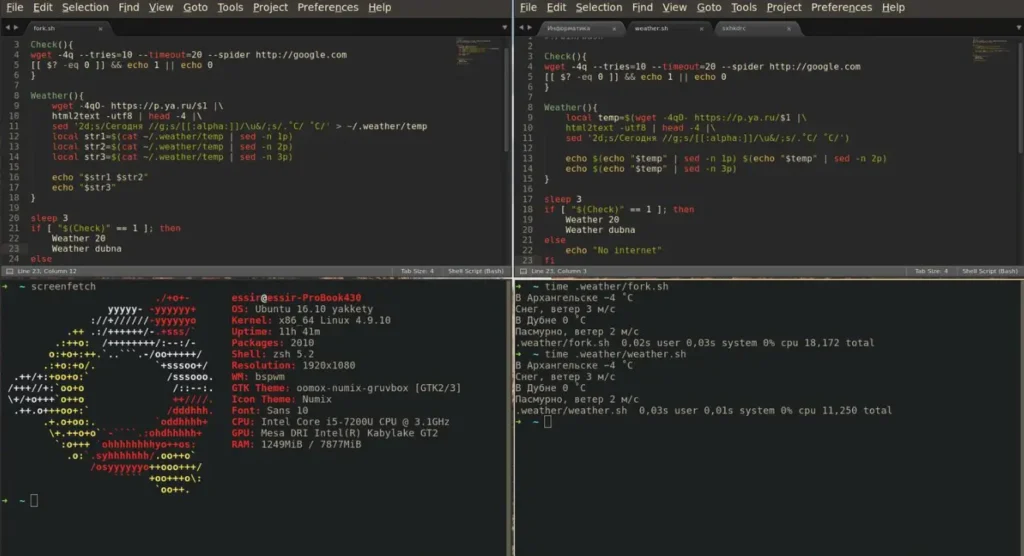
Gruvbox is a retro-inspired color scheme widely used by developers, programmers, and people who enjoy customizing their digital workspaces. Its combination of warm backgrounds, earthy colors, and distinctive syntax highlighting gives coding environments a comfortable, classic appearance.
Unlike themes built around bright neon colors or stark black-and-white contrasts, Gruvbox uses a carefully selected mix of browns, creams, yellows, greens, reds, and muted blues.
The theme is particularly well known among Vim and Neovim users, but it is also available for Visual Studio Code and numerous terminal applications.
Whether you’re exploring Gruvbox for the first time or planning to customize your coding environment, this guide explains its colors, features, variations, installation methods, benefits, limitations, and practical uses.
What Is Gruvbox?
Gruvbox is an open-source, retro-inspired color scheme originally created for Vim by Pavel Pertsev, known online as morhetz. It offers dark and light appearances, multiple contrast settings, and a recognizable palette designed to make different parts of code visually distinguishable.
Its original design was influenced by other established editor themes, including Solarized, Badwolf, and Jellybeans.
Gruvbox combines a vintage aesthetic with modern syntax highlighting. Instead of relying on pure black or pure white backgrounds, it uses warmer neutral shades that give the interface a distinctive appearance.
The original project is available on GitHub under the MIT/X11 license.
Why Is Gruvbox Popular?
Gruvbox has become a recognizable choice in developer customization because it balances visual personality with practical features.
1. Warm, Retro-Inspired Colors
One of Gruvbox’s most noticeable characteristics is its warm color palette.
The dark variant uses deep charcoal and brown backgrounds, while its lighter text colors create a softer visual experience than a pure-white-on-black design.
Its accent colors introduce warmth and variety without requiring a neon appearance.
2. Distinctive Syntax Highlighting
Gruvbox uses different colors to help readers distinguish elements of source code.
Depending on the editor, programming language, and theme implementation, these elements can include:
- Functions and method names
- Strings and numbers
- Keywords and operators
- Comments
- Variables and constants
- Errors and warnings
- Search results and selected text
The exact highlighting varies across applications and language extensions.
3. Dark and Light Modes
Gruvbox supports both dark and light color schemes, giving users flexibility in different environments.
Someone working in a dimly lit room might prefer its dark appearance, while another person may choose the light version for a bright workspace.
4. Customizable Contrast
Gruvbox includes hard, medium, and soft contrast options.
These settings allow users to change the background appearance without abandoning the theme’s overall visual identity.
5. Availability Across Developer Tools
Although Gruvbox began as a Vim color scheme, its visual style has been adapted for other development environments.
This makes it possible to create a consistent appearance across a code editor, terminal, and related tools.
Gruvbox Color Palette Explained
The Gruvbox color palette is built around neutral backgrounds combined with warm and cool accent colors.
Its defining colors include charcoal, cream, orange, yellow, green, aqua, blue, purple, and red.
Each color has a hexadecimal value, commonly called a HEX code. Developers can use these codes when customizing terminals, editor interfaces, websites, or design projects.
Gruvbox Dark Background Colors
| Color | HEX Code | Description |
|---|---|---|
| Dark Hard | #1D2021 | Deep charcoal background |
| Dark Medium | #282828 | Standard dark background |
| Dark Soft | #32302F | Slightly lighter dark background |
| Dark 1 | #3C3836 | Dark brown-gray |
| Dark 2 | #504945 | Medium-dark neutral |
| Dark 3 | #665C54 | Muted brown-gray |
| Dark 4 | #7C6F64 | Lighter brown-gray |
The standard dark background uses #282828, which helps give Gruvbox its distinctive warm appearance.
Gruvbox Light Background Colors
| Color | HEX Code | Description |
|---|---|---|
| Light Hard | #F9F5D7 | Pale cream |
| Light Medium | #FBF1C7 | Standard light background |
| Light Soft | #F2E5BC | Warm beige |
| Light 1 | #EBDBB2 | Muted cream |
| Light 2 | #D5C4A1 | Sandy beige |
| Light 3 | #BDAE93 | Warm gray-beige |
| Light 4 | #A89984 | Muted tan |
The standard light background, #FBF1C7, has a warm cream appearance that separates Gruvbox from many conventional white-background themes.
Gruvbox Accent Colors
| Color | Bright HEX Code | Neutral HEX Code | Faded HEX Code |
|---|---|---|---|
| Red | #FB4934 | #CC241D | #9D0006 |
| Green | #B8BB26 | #98971A | #79740E |
| Yellow | #FABD2F | #D79921 | #B57614 |
| Blue | #83A598 | #458588 | #076678 |
| Purple | #D3869B | #B16286 | #8F3F71 |
| Aqua | #8EC07C | #689D6A | #427B58 |
| Orange | #FE8019 | #D65D0E | #AF3A03 |
These are reference values from the original Gruvbox palette. Individual ports and customized versions may use different colors.
Gruvbox Dark vs. Gruvbox Light
Gruvbox dark and light themes share the same general design philosophy but offer noticeably different visual experiences.
Gruvbox Dark
Gruvbox Dark combines a deep charcoal background with warm, light-colored text and contrasting accent colors.
Its main characteristics include:
- A dark background with brown undertones
- Warm, cream-colored foreground text
- Bright syntax highlighting
- Support for several contrast levels
- A retro-inspired interface appearance
It can be a suitable choice for developers who prefer a dark workspace without using a pure-black background.
Gruvbox Light
Gruvbox Light features cream-colored backgrounds and darker foreground text.
Its characteristics include:
- A warm beige or cream background
- Dark text for everyday reading
- Muted accent colors
- A softer alternative to plain white interfaces
- Multiple contrast settings
Users who prefer light-themed applications may appreciate Gruvbox Light’s warm appearance.
Which Should You Choose?
| Feature | Gruvbox Dark | Gruvbox Light |
|---|---|---|
| Background | Charcoal and brown | Cream and beige |
| Text appearance | Light text | Dark text |
| General style | Warm, dark, retro | Warm, bright, retro |
| Suitable environment | Often preferred in dim lighting | Often preferred in brighter lighting |
| Contrast options | Hard, medium, soft | Hard, medium, soft |
Neither variant is universally better. The most appropriate choice depends on your environment, visual preferences, and readability needs.
Understanding Gruvbox Contrast Options
Gruvbox offers three primary background contrast settings: hard, medium, and soft.
Hard Contrast
Hard contrast uses the darkest background in dark mode and the palest background in light mode.
For dark mode, the hard background is #1D2021.
This setting is useful for people who prefer stronger visual separation between foreground content and the background.
Medium Contrast
Medium contrast is the standard option in the original Gruvbox theme.
The default dark background is #282828, while the default light background is #FBF1C7.
Medium contrast offers a balanced starting point for users unfamiliar with Gruvbox.
Soft Contrast
Soft contrast uses a slightly lighter dark background or a warmer, deeper light background.
For example, Gruvbox Dark Soft uses #32302F.
Users who prefer a more subdued appearance may find this option appealing.
Important: Hard, medium, and soft describe the theme’s background settings. They do not automatically indicate compliance with accessibility contrast standards.
How to Install Gruvbox in VS Code
Visual Studio Code supports Gruvbox through third-party theme extensions.
One available implementation is the Gruvbox extension published as jdinhlife.gruvbox.
Step 1: Open Visual Studio Code
Launch Visual Studio Code on your computer.
Step 2: Open Extensions
Select the Extensions icon from the Activity Bar, or use:
- Windows/Linux:
Ctrl + Shift + X - macOS:
Cmd + Shift + X
Step 3: Search for Gruvbox
Enter Gruvbox in the extension search field.
Find the extension with the identifier jdinhlife.gruvbox.
Check the publisher and extension details to confirm you’re installing the intended theme.
Step 4: Install the Extension
Select Install and allow Visual Studio Code to finish adding the extension.
You can also use the Quick Open command:
ext install jdinhlife.gruvbox
Step 5: Activate Gruvbox
Open the Command Palette and search for Preferences: Color Theme.
Choose your preferred Gruvbox variant.
The extension provides these six options:
- Gruvbox Dark Medium
- Gruvbox Dark Hard
- Gruvbox Dark Soft
- Gruvbox Light Medium
- Gruvbox Light Hard
- Gruvbox Light Soft
You can switch between them whenever your preferences change.
How to Install Gruvbox in Vim
Gruvbox was originally developed for Vim, making Vim one of its most established environments.
If you use vim-plug, add the original theme repository to your Vim configuration.
call plug#begin('~/.vim/plugged')

Plug 'morhetz/gruvbox'

call plug#end()
After saving your configuration, launch Vim and run:
:PlugInstallThen enable the theme:
set background=dark
colorscheme gruvbox
You can change dark to light if you prefer the lighter version.
Customizing Contrast in Vim
To use hard contrast in dark mode, add the following configuration before the colorscheme command:
set background=dark
let g:gruvbox_contrast_dark = 'hard'
colorscheme gruvbox
To use soft contrast, replace hard with soft.
The original theme also supports options for italic text, bold text, and other highlighting preferences.
How to Install Gruvbox in Neovim
Neovim users can install Gruvbox through a Lua-based theme implementation.
One widely used option is ellisonleao/gruvbox.nvim, which supports Tree-sitter and semantic highlighting.
Installing with lazy.nvim
Add the following plugin specification to your lazy.nvim configuration:
{
  "ellisonleao/gruvbox.nvim",
  priority = 1000,
  opts = {},
  config = function(_, opts)
    require("gruvbox").setup(opts)
    vim.o.background = "dark"
    vim.cmd.colorscheme("gruvbox")
  end,
}
The exact placement depends on how your Neovim plugin configuration is organized.
Changing Gruvbox Contrast in Neovim
To configure a stronger background contrast, use:
require("gruvbox").setup({
  contrast = "hard",
})

vim.o.background = "dark"
vim.cmd.colorscheme("gruvbox")
The Lua implementation accepts "hard", "soft", or an empty string for the default contrast behavior.
It also supports options for terminal colors, italics, transparent mode, and custom highlighting.
Make sure the setup function runs before the theme is activated.
Using Gruvbox in a Terminal
Gruvbox can also be used in compatible terminal emulators.
Popular terminal environments where Gruvbox-style color schemes can be configured include:
- Windows Terminal
- Kitty
- Alacritty
- iTerm2
- Other terminals supporting custom color palettes
Availability and setup instructions depend on the application and the particular Gruvbox port.
Basic Terminal Color Configuration
A dark Gruvbox-inspired terminal can use the following base colors:
Background: #282828
Foreground: #EBDBB2
Cursor:     #EBDBB2
Red:        #CC241D
Green:      #98971A
Yellow:     #D79921
Blue:       #458588
Purple:     #B16286
Aqua:       #689D6A
These colors offer a starting point for manual customization.
For a complete terminal theme, use the color mapping required by your terminal application, including its normal and bright ANSI color slots.
What Is Gruvbox Material?
Gruvbox Material is a modified version of the original Gruvbox color scheme, maintained as a separate project.
It preserves much of the original theme’s warm appearance while adjusting the colors and contrast.
Its developers provide three palette choices:
- Material: A modified palette designed with softer contrast.
- Mix: A palette created by blending the material and original options.
- Original: A palette based on the original Gruvbox colors.
Gruvbox Material also supports dark and light variants, multiple contrast settings, customization, and modern syntax highlighting features.
Gruvbox vs. Gruvbox Material
| Feature | Original Gruvbox | Gruvbox Material |
|---|---|---|
| Design | Classic retro color palette | Adjusted retro palette |
| Contrast | Original Gruvbox balance | Additional softer palette choices |
| Dark and light modes | Yes | Yes |
| Customization | Yes | Yes |
| Vim support | Yes | Yes |
| Neovim support | Yes | Yes |
| Visual identity | Classic Gruvbox | Gruvbox-inspired variation |
Choose original Gruvbox if you prefer the classic palette.
Consider Gruvbox Material if you want to experiment with alternative colors and softer visual treatments.
Can Gruvbox Be Used for Web Design?
Yes. The Gruvbox color palette can be adapted for websites, dashboards, developer portfolios, documentation pages, and interface prototypes.
However, a code editor theme should not automatically be treated as a complete web design system.
Before using it in a website, developers should consider typography, contrast, navigation, focus indicators, and accessible component states.
Example: Gruvbox CSS Color Variables
:root {
  --bg: #282828;
  --surface: #3c3836;
  --text: #ebdbb2;
  --red: #fb4934;
  --green: #b8bb26;
  --yellow: #fabd2f;
  --blue: #83a598;
  --purple: #d3869b;
  --aqua: #8ec07c;
  --orange: #fe8019;
}

body {
  background-color: var(--bg);
  color: var(--text);
  font-family: Arial, sans-serif;
  line-height: 1.6;
}

a {
  color: var(--aqua);
}

button {
  background-color: var(--yellow);
  color: var(--bg);
}
This example demonstrates how Gruvbox-inspired colors can be organized into reusable CSS variables.
It is a starting point rather than a complete, accessibility-tested design system.
Is Gruvbox Good for Your Eyes?
Gruvbox may feel visually comfortable to some users because it uses warm backgrounds and avoids the extreme black-and-white appearance found in certain themes.
However, there is an important distinction between personal comfort and proven eye-health benefits.
There is no established basis for claiming that Gruvbox itself prevents eye strain or protects eyesight.
Visual comfort depends on factors such as:
- Screen brightness
- Ambient lighting
- Text size and font rendering
- Contrast between text and background
- Display quality
- Individual visual needs
- Time spent working without breaks
For accessibility, the Web Content Accessibility Guidelines (WCAG) recommend a minimum contrast ratio of 4.5:1 for most normal text and 3:1 for large text under Level AA criteria.
Some Gruvbox color combinations may satisfy these requirements, while others may not.
Always evaluate the exact foreground and background colors rather than assuming the entire palette is accessible.
Benefits of Using Gruvbox
Recognizable Visual Appearance
Gruvbox offers a distinctive color combination that stands apart from generic gray or black editor themes.
Flexible Light and Dark Options
Users can change between light and dark backgrounds without adopting an entirely unrelated color scheme.
Multiple Customization Choices
The original theme and its ports provide ways to modify contrast, text styling, and highlighting behavior.
Strong Developer Tool Support
Gruvbox has an established ecosystem of third-party implementations for coding editors and terminal tools.
Reusable Color Palette
Its HEX values can also be applied to web interfaces, desktop customization, documentation, and design experiments.
Limitations of Gruvbox
Although Gruvbox offers several advantages, it may not suit everyone.
Warm colors are a matter of preference. Users who prefer cool blue-gray or monochromatic interfaces may dislike its earthy appearance.
Some accent combinations may have limited readability. Certain colors can be difficult to distinguish against particular backgrounds, especially at smaller font sizes.
Different implementations are not identical. A Gruvbox theme for VS Code may render colors differently from a Vim or terminal version.
Customization may require technical knowledge. Basic installation is often straightforward, but advanced changes may involve configuration files.
A theme cannot replace good display habits. Comfortable screen brightness, appropriate text sizing, and regular breaks still matter.
Common Gruvbox Problems and Solutions
Gruvbox Is Not Appearing in VS Code
First, confirm that the extension has been installed and enabled.
Then open the Color Theme selector and look for the available Gruvbox variants.
If the theme does not appear, check whether the extension is compatible with your current editor version.
Gruvbox Colors Look Incorrect
Different terminals and editor configurations may interpret colors differently.
Check whether your application supports true color and whether another theme or plugin is overriding the expected palette.
In compatible Vim configurations, true-color support may be enabled using:
set termguicolorsThe terminal itself must also support the required color capabilities.
Gruvbox Is Not Loading in Neovim
Verify that the plugin is installed and loaded before calling:
vim.cmd.colorscheme("gruvbox")Also confirm that your installed Gruvbox implementation supports your Neovim version.
Some Text Is Difficult to Read
Try another contrast setting, change your font size, or adjust individual highlight groups.
For users with specific accessibility requirements, test important color combinations using a contrast checker.
Gruvbox Looks Different Across Applications
This is normal because different theme ports may use slightly different palettes, highlighting rules, and interface colors.
For greater consistency, select implementations based on the original palette where available.
Who Should Use Gruvbox?
Gruvbox may be particularly appealing to:
Software developers: Programmers who want distinctive syntax highlighting and a warm editor appearance.
Vim and Neovim users: People looking for an established color scheme with extensive configuration options.
Terminal enthusiasts: Users customizing command-line applications and desktop environments.
Web designers: Designers interested in using earthy, retro-inspired colors in interface concepts.
Students learning to code: Beginners who want to experiment with editor themes and find a visually comfortable workspace.
Ultimately, Gruvbox is a personal preference rather than a productivity requirement.
Frequently Asked Questions About Gruvbox
What is Gruvbox used for?
Gruvbox is primarily used as a color scheme for text editors, coding environments, and terminals. Its colors can also be adapted for websites and interface design.
Is Gruvbox free?
Yes. The original Gruvbox project is open source and distributed under the MIT/X11 license. Individual ports may have their own licensing terms.
Who created Gruvbox?
Gruvbox was created by Pavel Pertsev, also known by the GitHub username morhetz.
What is the main Gruvbox background color?
The standard Gruvbox Dark background is #282828, while the standard Gruvbox Light background is #FBF1C7.
Does Gruvbox have a light theme?
Yes. Gruvbox supports light and dark modes, each with hard, medium, and soft background contrast settings in the original implementation.
What is Gruvbox Dark Hard?
Gruvbox Dark Hard is a dark-mode variant that uses a deeper background color, #1D2021, instead of the standard dark background.
What is Gruvbox Dark Soft?
Gruvbox Dark Soft uses the background color #32302F, giving the dark theme a slightly lighter and more subdued appearance.
Does Gruvbox work with VS Code?
Yes. Third-party Gruvbox extensions are available through the Visual Studio Marketplace, including jdinhlife.gruvbox.
Can I use Gruvbox with Neovim?
Yes. Neovim supports Gruvbox through different theme implementations, including the Lua-based ellisonleao/gruvbox.nvim project.
What is the difference between Gruvbox and Gruvbox Material?
Original Gruvbox uses its classic retro palette, while Gruvbox Material introduces modified palettes and softer contrast choices.
Is Gruvbox better than Solarized?
Neither theme is universally better. Gruvbox has a warmer, more earthy appearance, while Solarized uses a different palette and color balance. The choice depends on individual preferences and readability requirements.
Is Gruvbox suitable for beginners?
Yes. Beginners can install Gruvbox in supported editors without advanced configuration. More experienced users can customize additional settings.
Can Gruvbox improve coding productivity?
A comfortable, readable theme may make an editor more pleasant to use, but Gruvbox has not been established as a direct way to improve coding speed or productivity.
Can Gruvbox be used on Windows, macOS, and Linux?
Yes. Gruvbox is available through compatible, cross-platform editors and terminal applications. The installation process depends on the specific software.
Final Thoughts
Gruvbox remains a distinctive choice for anyone who appreciates warm colors, retro styling, and customizable development environments.
Its carefully organized palette, dark and light modes, and multiple contrast options provide a flexible foundation for customizing code editors and terminals.
Developers who prefer the original design can use classic Gruvbox, while those interested in alternative color treatments can explore Gruvbox Material and other community implementations.
If you’re new to the theme, starting with Gruvbox Dark Medium is a practical option. From there, try the light, hard, and soft variations to determine which combination works best for your workspace and personal preferences.