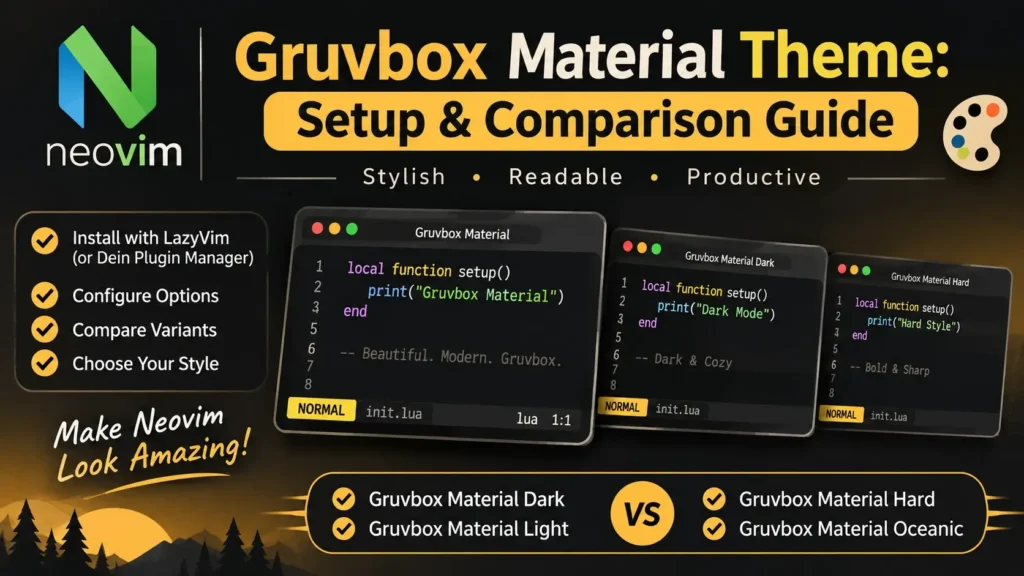
Choosing the right color theme can make your coding environment more visually appealing and comfortable to use. If you’re a fan of warm, retro-inspired colors, you’ve probably heard of Gruvbox, one of the most recognizable color schemes among developers.
But there’s another option worth exploring: Gruvbox Material.
Gruvbox Material builds on the original Gruvbox design while introducing alternative color palettes, softer visual combinations, and additional customization options. It maintains the familiar earthy appearance but gives developers more flexibility when configuring their editors.
Whether you’re using Visual Studio Code (VS Code), Vim, or Neovim, Gruvbox Material can help create a consistent and personalized development environment.
What Is Gruvbox Material?
Gruvbox Material is an open-source color scheme created by sainnhe that modifies the original Gruvbox palette to offer alternative color combinations and a softer visual appearance.
It is inspired by the original Gruvbox theme developed by Pavel Pertsev, also known as morhetz.
While both themes share warm backgrounds and retro-inspired accent colors, Gruvbox Material provides additional options for adjusting the overall color balance.
The theme is particularly popular among users who appreciate the original Gruvbox aesthetic but want to experiment with different saturation and contrast levels.
Gruvbox Material supports both dark and light appearances and offers several configuration options for Vim and Neovim.
Community adaptations also make the theme available in other development environments.
Key Features of Gruvbox Material
Gruvbox Material offers several features that make it appealing to developers:
- Three palette options: Choose between Material, Mix, and Original color treatments.
- Dark and light modes: Switch between warm charcoal and cream-colored backgrounds.
- Multiple contrast settings: Adjust the background with hard, medium, and soft options.
- Syntax highlighting: Use coordinated colors for programming keywords, strings, functions, and other code elements.
- Customizable interface: Adjust theme colors, text styling, and supported editor components.
- Terminal compatibility: Use Gruvbox-inspired colors in compatible terminal environments.
- Vim and Neovim support: Configure the theme through its original editor implementation.
- Modern highlighting integrations: Use available support for compatible syntax and plugin highlighting systems.
The exact features depend on which Gruvbox Material implementation you install.
Gruvbox vs. Gruvbox Material: What’s the Difference?
The main difference between original Gruvbox and Gruvbox Material is their approach to color balance.
Original Gruvbox uses its classic retro palette, while Gruvbox Material introduces modified palette options that can create a softer, more subdued appearance.
Both themes emphasize warm backgrounds and recognizable accent colors, but Gruvbox Material offers additional ways to customize the palette.
Original Gruvbox
The original Gruvbox theme was developed for Vim and uses earthy backgrounds with distinctive red, green, yellow, blue, purple, aqua, and orange accents.
Its standard dark background is #282828, while the standard light background is #FBF1C7.
The original theme supports dark and light variants with adjustable contrast.
It is a good choice for developers who prefer the classic Gruvbox appearance.
Gruvbox Material
Gruvbox Material builds on the same overall design philosophy but introduces alternative palette choices.
Instead of following a single fixed accent palette, it allows developers to select different color treatments.
This flexibility makes it appealing to users who enjoy Gruvbox but want a different balance of saturation and contrast.
Gruvbox vs. Gruvbox Material Comparison Table
| Feature | Original Gruvbox | Gruvbox Material |
|---|---|---|
| Original creator | Pavel Pertsev (morhetz) | sainnhe |
| Design style | Classic retro | Modified retro |
| Color palette | Original Gruvbox colors | Material, Mix, Original options |
| Overall appearance | Warm and colorful | Warm with softer alternatives |
| Dark mode | Yes | Yes |
| Light mode | Yes | Yes |
| Contrast options | Hard, Medium, Soft | Hard, Medium, Soft |
| Customization | Yes | Yes |
| Vim support | Yes | Yes |
| Neovim support | Yes | Yes |
| VS Code availability | Third-party extensions | Third-party ports |
| Best for | Classic Gruvbox fans | Users seeking alternative color balances |
Neither theme is universally better.
The right choice depends on whether you prefer the traditional Gruvbox palette or want additional color variations.
Gruvbox Material Color Palette Explained
Gruvbox Material uses warm neutral backgrounds combined with colorful accents.
Its palette includes shades of charcoal, beige, green, yellow, red, blue, orange, purple, and aqua.
However, unlike the original Gruvbox, Gruvbox Material offers multiple palette options that can affect the precise color values.
1. Material Palette
The Material palette is the defining variation of Gruvbox Material.
It adjusts the original palette to create a different balance of color and contrast.
This option is worth exploring if you want a more subdued interpretation of the original Gruvbox design.
2. Mix Palette
The Mix palette combines characteristics of the Material and Original color treatments.
It offers a middle ground for developers who like aspects of both palettes.
3. Original Palette
The Original option retains colors inspired by the classic Gruvbox palette.
This is useful if you want to keep a familiar appearance while using the Gruvbox Material implementation.
Gruvbox Material Background Colors
The theme supports three background contrast settings.
For example, common Gruvbox Material dark background values include:
| Dark Variant | Background HEX | Appearance |
|---|---|---|
| Hard | #1D2021 | Deep charcoal |
| Medium | #282828 | Classic warm dark |
| Soft | #32302F | Softer dark brown-gray |
These illustrate familiar Gruvbox-family background shades. Gruvbox Material’s actual background colors can vary by palette, mode, and implementation, so these should not be treated as universal values for every Gruvbox Material variant.
Gruvbox Material Accent Colors
Gruvbox Material uses a coordinated set of accent colors for syntax highlighting.
Depending on your palette configuration, different shades may appear for:
- Keywords and operators
- Functions and methods
- Strings and numbers
- Variables and constants
- Comments and documentation
- Errors and warnings
- Search results and selected text
Rather than assuming every Gruvbox Material port uses identical HEX values, check the selected implementation when creating a precise color reference.
Gruvbox Material Dark vs. Light Theme
Gruvbox Material includes both dark and light appearances.
Each maintains the theme’s retro-inspired aesthetic while adjusting backgrounds and foreground colors.
Gruvbox Material Dark
The dark version uses deep charcoal and brown backgrounds with lighter text.
Accent colors are selected to remain visually distinguishable against these darker surfaces.
It is a suitable option for people who enjoy dark editor interfaces.
Gruvbox Material Light
The light version uses warm cream and beige backgrounds with darker text.
Its colors create a brighter, paper-like appearance that differs from conventional white-background themes.
Dark vs. Light Comparison
| Feature | Dark Theme | Light Theme |
|---|---|---|
| Background | Charcoal and brown | Cream and beige |
| Text color | Light foreground | Dark foreground |
| Overall appearance | Warm dark retro | Warm light retro |
| Syntax highlighting | Colors adapted to dark surfaces | Colors adapted to light surfaces |
| Contrast options | Hard, Medium, Soft | Hard, Medium, Soft |
| Customizable | Yes | Yes |
| Suitable for | Dark-interface preferences | Light-interface preferences |
The best mode depends on your screen brightness, working environment, and readability preferences.
How to Install Gruvbox Material in Neovim
Neovim is one of the primary environments supported by Gruvbox Material.
The original Gruvbox Material project is maintained in the GitHub repository:
You can install it using a compatible plugin manager.
Method 1: Install Gruvbox Material Using lazy.nvim
Lazy.nvim is commonly used for managing plugins in modern Neovim configurations.
If you already have lazy.nvim installed, follow these steps.
Step 1: Open Your Neovim Configuration
On Linux or macOS, your main configuration is usually located at:
~/.config/nvim/init.luaOn Windows, the standard location is typically:
%LOCALAPPDATA%\nvim\init.luaIf your configuration uses a separate plugin directory, locate the file containing your lazy.nvim plugin specifications.
Step 2: Add Gruvbox Material
Add the following plugin specification to the list passed to lazy.nvim:
{
  "sainnhe/gruvbox-material",
  lazy = false,
  priority = 1000,
  config = function()
    vim.g.gruvbox_material_background = "medium"
    vim.g.gruvbox_material_foreground = "material"

    vim.o.background = "dark"
    vim.cmd.colorscheme("gruvbox-material")
  end,
}
The settings control the background contrast and foreground palette.
The priority = 1000 option helps load the theme early in your startup sequence.
Setting lazy = false ensures the theme is not delayed until a later event.
Step 3: Install the Plugin
Save your configuration and start Neovim.
Run:
:Lazy syncLazy.nvim will install missing plugins and synchronize the configured dependencies.
Step 4: Activate Gruvbox Material
Run:
:colorscheme gruvbox-materialThe theme should activate if it has been installed and loaded correctly.
Step 5: Verify the Active Theme
You can check the active color scheme by running:
:colorschemeNeovim should display:
gruvbox-materialIf the theme is active, open a source code file to inspect the colors and syntax highlighting.
Method 2: Install Gruvbox Material Using vim-plug
Vim-plug is another option for managing Gruvbox Material.
If you already use vim-plug, add the theme to your plugin list.
In an init.vim configuration, the setup can look like this:
call plug#begin()

Plug 'sainnhe/gruvbox-material'

call plug#end()
If you already have a vim-plug block, add only the Plug declaration inside it.
Then install the plugin:
:PlugInstallAfter installation, add the following settings after your plugin block:
set background=dark
let g:gruvbox_material_background = 'medium'
let g:gruvbox_material_foreground = 'material'

colorscheme gruvbox-material
Restart Neovim or reload your configuration.
Method 3: Install Gruvbox Material Using packer.nvim
If your existing Neovim configuration uses packer.nvim, add Gruvbox Material through your plugin declarations.
use({
  "sainnhe/gruvbox-material",
  config = function()
    vim.g.gruvbox_material_background = "medium"
    vim.g.gruvbox_material_foreground = "material"

    vim.o.background = "dark"
    vim.cmd.colorscheme("gruvbox-material")
  end,
})
Then run:
:PackerSyncPacker.nvim is no longer actively maintained, so lazy.nvim may be more suitable for new Neovim configurations. However, existing packer-based setups can still use the plugin.
How to Set Up Gruvbox Material in Vim
Gruvbox Material also supports traditional Vim configurations.
If you use Vim with vim-plug, add:
Plug 'sainnhe/gruvbox-material'Install the plugin with:
:PlugInstallThen add the theme configuration:
set background=dark
let g:gruvbox_material_background = 'medium'
let g:gruvbox_material_foreground = 'material'

colorscheme gruvbox-material
Place these settings after your plugin declarations.
For improved color rendering in supported terminals, enable true-color support:
set termguicolorsThis helps display the intended palette when your terminal supports 24-bit colors.
How to Install Gruvbox Material in VS Code
Visual Studio Code supports Gruvbox Material through community-maintained theme extensions.
Because several Gruvbox-inspired themes exist in the Marketplace, confirm that the extension specifically provides a Gruvbox Material palette rather than only the original Gruvbox theme.
Step 1: Open Visual Studio Code
Launch VS Code on your computer.
Step 2: Open Extensions
Select the Extensions icon from the Activity Bar.
Alternatively, use:
- Windows/Linux:
Ctrl + Shift + X - macOS:
Cmd + Shift + X
Step 3: Search for Gruvbox Material
In the Extensions Marketplace, enter:
Gruvbox Material
Browse the available results.
Check the extension description, screenshots, publisher, and documentation before installing.
Step 4: Install Your Preferred Extension
Select a suitable Gruvbox Material implementation and click Install.
VS Code will download and add the extension.
Step 5: Activate the Theme
Open the Command Palette and search for:
Preferences: Color Theme
Select the command and choose the Gruvbox Material variant provided by your installed extension.
The exact names and available variants depend on the extension.
Step 6: Verify the Colors
Open a source code file and inspect the background, foreground, syntax highlighting, and sidebar colors.
Compare the appearance with the extension’s own documentation to confirm that the desired theme is active.
How to Change Gruvbox Material Background Contrast
One of Gruvbox Material’s important customization features is its support for different background contrast levels.
You can select Hard, Medium, or Soft.
Hard Background
Use:
vim.g.gruvbox_material_background = "hard"This selects the hard background variant.
Medium Background
Use:
vim.g.gruvbox_material_background = "medium"Medium provides the standard background balance.
Soft Background
Use:
vim.g.gruvbox_material_background = "soft"Soft provides a more subdued background appearance.
These settings should be applied before activating the color scheme.
For example:
vim.g.gruvbox_material_background = "soft"

vim.o.background = "dark"
vim.cmd.colorscheme("gruvbox-material")
After changing the configuration, reload the color scheme or restart Neovim.
How to Change Gruvbox Material Foreground Palette
Gruvbox Material offers three main foreground palette choices.
These options provide different interpretations of the original Gruvbox colors.
Material Foreground
vim.g.gruvbox_material_foreground = "material"This selects the modified Material palette.
Mix Foreground
vim.g.gruvbox_material_foreground = "mix"This combines characteristics of the Material and Original palettes.
Original Foreground
vim.g.gruvbox_material_foreground = "original"This selects a palette closer to the original Gruvbox colors.
Complete Example
vim.g.gruvbox_material_background = "medium"
vim.g.gruvbox_material_foreground = "mix"

vim.o.background = "dark"
vim.cmd.colorscheme("gruvbox-material")
This example combines the medium background with the Mix foreground palette.
Experiment with these options to find your preferred appearance.
How to Enable Gruvbox Material Light Mode
Gruvbox Material supports a light appearance.
To activate it in Neovim, use:
vim.o.background = "light"
vim.cmd.colorscheme("gruvbox-material")
You can combine light mode with a contrast and foreground configuration:
vim.g.gruvbox_material_background = "soft"
vim.g.gruvbox_material_foreground = "material"

vim.o.background = "light"
vim.cmd.colorscheme("gruvbox-material")
This creates a warm light interface using the selected settings.
To return to dark mode, use:
vim.o.background = "dark"
vim.cmd.colorscheme("gruvbox-material")
How to Enable Gruvbox Material Transparent Background
A transparent background allows the terminal emulator’s background to show through selected editor surfaces.
Gruvbox Material provides a transparency option for supported configurations.
For example:
vim.g.gruvbox_material_transparent_background = 1

vim.o.background = "dark"
vim.cmd.colorscheme("gruvbox-material")
The terminal emulator must also support the desired transparency effect.
If you still see an opaque background, check whether another plugin is applying its own background colors.
Some terminal or plugin combinations may require additional configuration.
How to Enable Italic Comments in Gruvbox Material
Italic comments can make documentation and explanatory text visually distinct from executable code.
In supported Gruvbox Material configurations, you can enable italic comments using:
vim.g.gruvbox_material_enable_italic = 1

vim.o.background = "dark"
vim.cmd.colorscheme("gruvbox-material")
Whether italics render correctly depends on your terminal and font configuration.
If your font does not include italic glyphs, the appearance may differ.
How to Customize Gruvbox Material Highlight Colors
Some developers prefer to modify specific elements of the Gruvbox Material theme.
Neovim provides highlight commands that can override colors after the theme loads.
For example, you can customize comments:
vim.api.nvim_set_hl(0, "Comment", {
  fg = "#928374",
  italic = true,
})
You can also customize the cursor line:
vim.api.nvim_set_hl(0, "CursorLine", {
  bg = "#3C3836",
})

vim.opt.cursorline = true
These values are examples inspired by the original Gruvbox palette, not universal defaults for Gruvbox Material.
Keep Custom Highlights After Theme Reloads
If you reapply the color scheme, Neovim may reset custom highlight groups.
You can use a ColorScheme autocmd to reapply the desired settings.
vim.api.nvim_create_autocmd("ColorScheme", {
  pattern = "gruvbox-material",
  callback = function()
    vim.api.nvim_set_hl(0, "Comment", {
      fg = "#928374",
      italic = true,
    })
  end,
})
Define this autocmd before activating Gruvbox Material so it also runs when the theme is first applied.
How to Use Gruvbox Material With Tree-sitter
Tree-sitter is commonly used in Neovim to provide more detailed syntax highlighting.
Gruvbox Material includes highlight definitions for supported syntax systems and integrations.
To use it with Tree-sitter:
- Install a compatible Tree-sitter integration for your Neovim version.
- Install the required language parsers.
- Enable the appropriate highlighting functionality.
- Activate Gruvbox Material.
- Open a supported source code file to verify the appearance.
The exact Tree-sitter setup depends on your Neovim version and installed plugin.
If you notice inconsistent syntax colors, review your Tree-sitter configuration and check whether another plugin is overriding highlight groups.
Gruvbox Material vs. Original Gruvbox: Which Is Better for Coding?
Both themes offer warm retro-inspired styling, but their different color treatments may suit different preferences.
Choose Original Gruvbox If You Prefer:
- The classic Gruvbox color palette.
- The traditional retro appearance.
- Familiar color values across supported implementations.
- A straightforward theme configuration.
- The original project’s visual design.
Choose Gruvbox Material If You Prefer:
- More foreground palette options.
- Alternative color balances.
- Softer visual combinations.
- Additional customization choices.
- A modified interpretation of the Gruvbox aesthetic.
Both themes can support effective programming workflows.
Neither directly improves code execution speed or programming performance.
The most important factor is whether the colors make your source code easy to read.
Is Gruvbox Material Better for Your Eyes?
Gruvbox Material is sometimes described as visually comfortable because of its warm colors and softer palette options.
However, there is no established evidence that this particular theme prevents eye strain or improves eye health.
Visual comfort depends on several factors:
- Screen brightness.
- Ambient lighting.
- Font size.
- Foreground and background contrast.
- Monitor quality.
- Glare and reflections.
- Individual vision needs.
- Time spent working without breaks.
A softer-looking palette does not automatically provide better accessibility.
For most normal text, WCAG Level AA recommends a minimum contrast ratio of 4.5:1.
If accessibility is important, test the actual foreground and background combinations used in your editor.
Common Gruvbox Material Problems and Troubleshooting
1. Gruvbox Material Is Not Loading
If Neovim reports that it cannot find the color scheme, the plugin may be missing or may not have loaded correctly.
Solution: Verify the plugin installation and ensure that the colorscheme command runs after the theme is available.
You can try:
:colorscheme gruvbox-materialIf this produces an error, inspect your plugin manager’s installation status.
2. Gruvbox Material Colors Look Incorrect
Incorrect colors may result from limited terminal color support or conflicting configuration settings.
Solution: Enable true-color support in Neovim:
vim.opt.termguicolors = trueAlso confirm that your terminal emulator supports 24-bit colors.
3. Background Contrast Is Not Changing
If switching between Hard, Medium, and Soft does not produce the expected result, your settings may be applied after the color scheme loads.
Solution: Set gruvbox_material_background before activating the theme.
Then reload Gruvbox Material.
4. Light Mode Is Not Working
If the theme remains dark, verify your background setting.
Solution:
vim.o.background = "light"
vim.cmd.colorscheme("gruvbox-material")
Also check whether another configuration file resets the background to dark.
5. Transparent Background Is Not Working
Transparency depends on both the theme and terminal emulator.
Solution: Enable the theme’s transparency option and verify that terminal transparency is supported and configured.
6. Syntax Highlighting Looks Incomplete
This may be caused by missing language parsers, syntax configuration problems, or conflicting plugins.
Solution: Review your language highlighting setup and inspect the active highlight groups.
In supported Neovim versions, you can use:
:InspectThis helps identify highlighting information at the cursor position.
7. Another Theme Overrides Gruvbox Material
If a different theme appears after startup, another plugin or configuration file may be activating its own color scheme.
Solution: Search for additional colorscheme commands and remove unwanted overrides.
8. Custom Colors Disappear After Restarting
Custom highlights may be overwritten when the theme is reapplied.
Solution: Use a ColorScheme autocmd to reapply your highlight changes.
9. Gruvbox Material Is Not Showing in VS Code
Some VS Code extensions use similar names but provide different implementations.
Solution: Verify the exact installed extension, review its available color themes, and select the intended variant from the Color Theme picker.
10. The Theme Looks Different Across Editors
Different ports may use modified colors, highlighting rules, or interface styling.
Solution: Compare the actual palette definitions of the implementations you’re using and choose matching options where possible.
Best Practices for Using Gruvbox Material
To create a comfortable coding environment, consider the following recommendations.
Start with Medium contrast. This is a practical reference point before experimenting with other backgrounds.
Compare all three foreground palettes. Material, Mix, and Original can produce noticeably different visual results.
Use true-color support. Enable 24-bit color rendering when supported by your terminal.
Choose a readable font. A clear monospace font and appropriate size can improve code readability.
Avoid unnecessary overrides. Too many custom colors may create an inconsistent interface.
Keep your configuration organized. Place theme settings together to make troubleshooting easier.
Check terminal compatibility. Some visual features require support from the terminal emulator.
Test both light and dark modes. Choose the one that works best in your environment.
Review plugin updates. Changes to theme implementations may affect customization options and highlight behavior.
Frequently Asked Questions About Gruvbox Material
1. What is Gruvbox Material?
Gruvbox Material is an open-source color scheme inspired by the original Gruvbox theme. It introduces alternative palettes and customization options while maintaining a warm, retro-inspired design.
2. What is the difference between Gruvbox and Gruvbox Material?
Original Gruvbox uses its classic color palette, while Gruvbox Material offers modified Material, Mix, and Original foreground palette options.
3. Is Gruvbox Material free?
Yes. The original Gruvbox Material project is open source and available for free. Check the licensing terms of individual community ports.
4. Who created Gruvbox Material?
Gruvbox Material was created by sainnhe as an alternative color scheme inspired by the original Gruvbox project.
5. Can I use Gruvbox Material in Neovim?
Yes. Gruvbox Material supports Neovim and can be installed through compatible plugin managers such as lazy.nvim.
6. Does Gruvbox Material work in VS Code?
Yes. Community-maintained VS Code extensions provide Gruvbox Material-inspired themes. Available features vary by extension.
7. How do I install Gruvbox Material in Neovim?
Add sainnhe/gruvbox-material to your plugin manager, install the plugin, configure your preferred options, and activate it using :colorscheme gruvbox-material.
8. What are the Gruvbox Material foreground options?
Gruvbox Material supports Material, Mix, and Original foreground palette choices.
9. Does Gruvbox Material have a light theme?
Yes. It supports both dark and light appearances.
10. How do I enable Gruvbox Material Dark mode?
Set the editor background to dark and activate the Gruvbox Material color scheme.
11. How do I change Gruvbox Material contrast?
Use the gruvbox_material_background setting with hard, medium, or soft, then reload the color scheme.
12. Does Gruvbox Material support transparent backgrounds?
Yes. Supported configurations provide a transparency option, although the terminal must also support the intended effect.
13. Can I customize Gruvbox Material colors?
Yes. You can change theme options and override individual highlight groups in compatible editors.
14. Does Gruvbox Material support Tree-sitter?
It includes highlighting support relevant to modern syntax systems. Actual behavior depends on your Neovim version, Tree-sitter integration, and installed parsers.
15. Is Gruvbox Material better than original Gruvbox?
Neither is objectively better. Original Gruvbox is ideal for users who prefer its classic appearance, while Gruvbox Material offers additional palette choices.
16. Is Gruvbox Material good for long coding sessions?
Some developers prefer its warm colors, but long-term comfort depends on screen brightness, text size, lighting, contrast, and individual preferences.
17. Does Gruvbox Material improve programming performance?
No. It changes the appearance of your editor rather than the performance of your programs.
18. Can I switch from Gruvbox Material to original Gruvbox?
Yes. Install both themes if desired and activate the appropriate colorscheme in your editor.
Final Thoughts
Gruvbox Material is an appealing alternative for developers who enjoy the original Gruvbox aesthetic but want additional palette options and customization flexibility.
Its Material, Mix, and Original foreground choices, combined with dark and light modes and multiple contrast settings, give users several ways to personalize their coding environments.
For Neovim and Vim users, installing Gruvbox Material through a compatible plugin manager is relatively straightforward. VS Code users can explore community-maintained theme extensions that reproduce its visual style.
If you’re new to Gruvbox Material, start with the Material foreground palette and Medium background contrast. This provides a useful baseline for comparing the available options.
Then experiment with Dark and Light modes, alternative palette choices, transparency, and syntax highlighting settings.
Whether you choose original Gruvbox or Gruvbox Material, the goal is the same: create a coding environment that is readable, visually consistent, and comfortable for your daily workflow.